Evaluating and Registering File Downloader
Evaluating File Downloader
If you would like to evaluate File Downloader before making a purchase decision you can do it as follows:
- Use File Downloader on
localhostdomain where it always works as a full version. - Register a trial license key.
Trial license key is not associated with any domain name or IP address and allows downloading files from any web sites. It also does not constrain the functionality of File Downloader but puts the following limitations on its usage:
-
Every time you download files from a server you get the following message:
This is a trial version. It can be used in evaluation process only. -
You can use File Downloader with a trial license key during the 30 days evaluation period only.
The evaluation version of File Downloader neither puts any limitations on the number of files that can be downloaded nor constrains its functionality anyhow. So if the evaluation version does not work properly, we highly encourage you to create support case and tell us about the problem.
Obtain Trial License Key via Request Evaluation Keys Tool
To request trial license key you should use Request Evaluation Keys tool which is distributed with the product. To launch this tool click the Start button, point to All Programs, and then point to Aurigma. Point to File Downloader 7.0.9 and click Request Evaluation Keys.
If you downloaded File Downloader no setup archive (
) just unpack this archive and run the FileDownloaderNoSetup.zip
/RequestEvaluationKey/RequestKeyOnWindows.exe file.
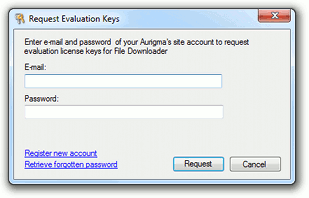
Then enter your E-mail and Password, you are registered with www.aurigma.com, and then click Request.
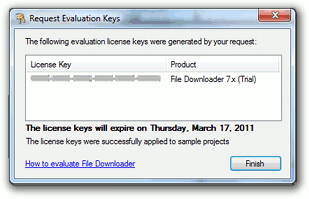
After you request trial license keys they are automatically registered in all sample applications installed along with File Downloader. Then you can move these samples to your web server. If, however, you need to apply these keys to another application just paste them to this application as it is described in the Registering License Key section.
Obtain Trial License Key Manually
If you cannot obtain trial license keys using Request Evaluation Keys tool for some reason you can do it online (http://www.aurigma.com/account/licenses).
Removing Limitations of Evaluation Version
After you purchase a license for File Downloader you get one or several full license keys. Full license key is associated with the domain name or IP address of the site where File Downloader will be used (speaking more precisely - the address of the server where you will host the control and submit files to). If the full license key matches the address you have provided, File Downloader works as a full version, otherwise, it will not work at all. It will show the following message every time you start the download:
No valid license key for current DNS/IP address specified. If you see this message contact site administrator.
There are two licensing options available for File Downloader:
- Domain License
-
Allows using File Downloader with the domain name you specified during activation.
The license key is generated for a fully qualified domain name, that is, it works neither with other domains associated with the same site nor with any subdomains of this domain. The only exception is the
wwwsubdomain. In other words, if you generate the license key for theyoursite.comdomain, it will not be valid forsubdomain.yoursite.com, but will be valid forwww.yoursite.com.NoteThe domain name of the page which hosts the control and the domain name of the server from which file list is requested must reside within the same organization-level domain as the registered domain. For example, if you registered the
files.yoursite.comdomain, you can host File Downloader or request file lists formyoursite.comor any of its subdomains. - IP License
-
Allows using File Downloader with all domains associated with the IP address specified during activation; available only in Premium edition.
Registering License Key
To register license key just specify it as a value of the FileDownloader.LicenseKey property, as follows:
var fd = new FileDownloaderWriter("FileDownloader", 122, 44);
//...other parameters...
fd.addParam("LicenseKey", "XXXXX-XXXXX-XXXXX-XXXXX-XXXXX-XXXXXX");
//...other parameters...
fd.writeHtml();
Several license keys should be added as a single string separated with semicolons (;), just like in the following sample:
var fd = new FileDownloaderWriter("FileDownloader", 122, 44);
//...other parameters...
fd.addParam("LicenseKey", "XXXXX-XXXXX-XXXXX-XXXXX-XXXXX-XXXXXX;YYYYY-YYYYY-YYYYY-YYYYY-YYYYY-YYYYYY");
//...other parameters...
fd.writeHtml();