User Quota Sample
This demo application shows how to allow users to upload not more than some specified number of files of specified total size. It also demonstrates how to display user quota dynamically and how to customize user interface.
Features
The application highlights the following features:
- Setting and displaying upload restrictions on file count and total size.
- Appearance customization, including custom HTML buttons, and additional view modes menu.
- Automatic connection recovery.
To find information about how this demo is implemented using a specific platform, see the Samples by Platforms topic.
Client-Side Code
Upload Restrictions
The MaxFileSize, MaxTotalFileSize and MaxFileCount properties are used to specify upload restrictions. They limit the maximum size of a single file, the maximum number of files, and the maximum total size respectively. For more details about these properties, see the Specifying Restrictions for Size and Number of Files topic.
Image Uploader provides special means to get the information about how many files and of what size can still be uploaded, in particular:
- The UploadFileCountChange event is raised when the user adds or removes a file to or from the upload list (or checks/unchecks files in the two panes layout). Use this event to refresh displayed quota information.
- The UploadFileCount property specifies how many files are currently selected.
- The TotalFileSize property returns the total size of selected files.
To determine how many files can be uploaded before the limit is exceeded, find the difference between the UploadFileCount property and the limit specified by you with a MaxFileCount property. This value is calculated to update the remaining file count indicator correspondingly. It is done in the UploadFileCountChange event, and, therefore, the indicator is updated every time the user adds or removes files to the upload list.
The limitation for the file size is processed in the similar way: the difference between the TotalFileSize and MaxTotalFileSize properties is calculated and the remaining space indicator is updated in the UploadFileCountChange event.
As limitations specified in Image Uploader are checked only on the client side, you should not interpret them as a reliable protection. A potential malicious user can bypass all these limitations (by emulating Image Uploader or modifying its parameters in a local copy of a page). That is s why it is highly recommended to implement server-side verification of uploaded files in addition to Image Uploader file tests.
In other words, all the limitation features discussed in this topic should be used solely for the convenience of the user. They should not be interpreted as a serious protection from malicious users.
Appearance Customization
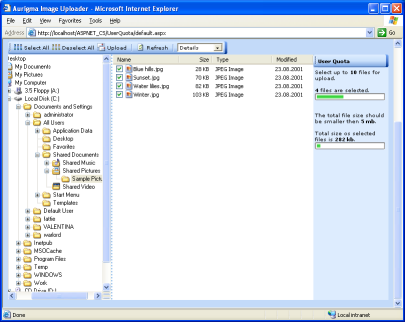
Figure 1. Application appearance of the ActiveX version, details view.
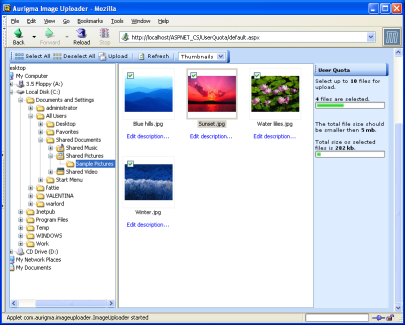
Figure 2. Application appearance of the Java version, thumbnails view.
In order to replace standard buttons with custom HTML versions, the standard ones are hidden using the ShowButtons property. Then, appropriate Image Uploader methods are bound to the new buttons via their onclick handlers. For more details, see the Customizing Buttons topic.
To handle view mode changes correctly, the ViewChange event is used. The corresponding property (FolderView or UploadView) is updated in the handler of this event. For more details, see the Adding View Mode Switch topic.
There are several properties that also modify the Image Uploader appearance, but are supported in the ActiveX version only. They all define how borders of different panes will look like:
Automatic Connection Recovery
Conditions for automatic connection recovery are specified using the AutoRecoverTimeOut and AutoRecoverMaxTriesCount properties. For more details about connection recovery, see the Configuring Automatic Upload Recovery topic.
Server-Side Code
To complete the upload started by Image Uploader, some actions on the server side should be performed. The upload script of this application is almost equivalent to the one of the Basic Demo Sample. The only difference is that now images are sent in several batches, and, therefore, only POST fields with index 1 (such as SourceFile_1, FileName_1, etc.) are used.
See Also
Reference
- MaxFileSize Property
- MaxTotalFileSize Property
- MaxFileCount Property
- UploadFileCountChange Event
- UploadFileCount Property
- TotalFileSize Property
- ShowButtons Property
- ViewChange Event
- FolderView Property
- UploadView Property
- FolderPaneBorderStyle Property
- UploadPaneBorderStyle Property
- TreePaneBorderStyle Property
- SplitterLineStyle Property
- AutoRecoverTimeOut Property
- AutoRecoverMaxTriesCount Property
- FilesPerOnePackageCount Property