---
title: "Behavior"
canonical: https://www.aurigma.com/docs/us8/behavior.htm
product: "Upload Suite 8"
---
# Behavior
This topic tells about how to change ActiveX/Java Uploader behavior. Here we will consider the following themes:
- selecting files for upload with a single click
- turning on instant upload mode
- providing custom messages through the **Information Bar**
- Mac OS peculiarities
## Simplified Files Selection
Usually ActiveX/Java Uploader offers a user two ways to select files: click a check box or drag-and-drop a file to the upload pane. If both these methods are somehow wrong for you, you can turn on simplified files selection mode using the Uploader.EnableCheckByClick[EnableCheckByClick (ASP.NET)](https://www.aurigma.com/docs/us8/JA_P_Aurigma_ImageUploader_Uploader_EnableCheckByClick.htm.md)[EnableCheckByClick (PHP)](https://www.aurigma.com/docs/us8/JA_P_P_Uploader_EnableCheckByClick.htm.md)[enableCheckByClick (JavaScript)](https://www.aurigma.com/docs/us8/JA_P_J_$au_uploader_enableCheckByClick.htm.md) property. This mode allows selecting a file by clicking on a whole item in the folder pane, which is faster and simpler (but has some limitations).
**Note**
If simplified files selection is enabled, files cannot be opened by double-clicking and multiple selection is not supported with this mode.
The following configuration turns on simplified files selection:
```aspx-cs
``` ```
$uploader = new Uploader("Uploader1");
$uploader->setEnableCheckByClick(true);
$uploader->render();
``` ```
var u = $au.uploader({
id: 'Uploader1',
EnableCheckByClick : true
});
```
## Instant Upload
In ActiveX/Java Uploader the standart process of file upload consists of the following steps:
1. User selects files to upload.
2. User edits upload list (if it is needed).
3. User clicks the **Upload** button.
4. ActiveX/Java Uploader sends files to the server.
Sometimes it is useful to start the upload process right after a user has added files to the upload pane; this upload mode is called *instant upload*. It is useful, for example, if you need a simple drop-box-like user interface in your web application.
The UploadSettings.EnableInstantUpload[EnableInstantUpload (ASP.NET)](https://www.aurigma.com/docs/us8/JA_P_Aurigma_ImageUploader_UploadSettings_EnableInstantUpload.htm.md)[EnableInstantUpload (PHP)](https://www.aurigma.com/docs/us8/JA_P_P_UploadSettings_EnableInstantUpload.htm.md)[enableInstantUpload (JavaScript)](https://www.aurigma.com/docs/us8/JA_P_J_$au_uploadSettings_enableInstantUpload.htm.md) property enables/disables instant upload mode. When this mode is turned on, upload process consists of two steps only:
1. User selects files to upload.
2. ActiveX/Java Uploader sends files to the server.
The following configuration turns on instant upload mode:
```aspx-cs
``` ```
$uploader = new Uploader("Uploader1");
$uploader->getUploadSettings()->setEnableInstantUpload(true);
$uploader->render();
``` ```
var u = $au.uploader({
id: 'Uploader1',
uploadSettings: {
enableInstantUpload: true,
}
});
```
## Custom Messages in Information Bar
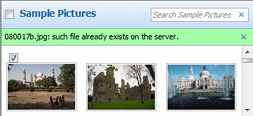
ActiveX/Java Uploader displays information and error messages in the **Information bar**. There are predefined Messages[Messages (ASP.NET)](https://www.aurigma.com/docs/us8/JA_T_Aurigma_ImageUploader_Messages.htm.md)[Messages (PHP)](https://www.aurigma.com/docs/us8/JA_T_P_Messages.htm.md)[messages (JavaScript)](https://www.aurigma.com/docs/us8/JA_T_J_$au_messages.htm.md), which text can be customized, but sometimes they are not enough; especially, when your application logic is complex. The [informationBar.show(String, String)](https://www.aurigma.com/docs/us8/JA_M_J_$au_informationBar_show_2_393e8f3d.htm.md) method allows you to display your own message in the **Information bar** so it looks like a standard ActiveX/Java Uploader message. This is very useful in order to keep the user interface uniform.
To specify text of your message use the first argument of the **informationBar.show(String, String)** method. The second parameter is the message type: error or information message.
The following example gives an idea of how to use the **informationBar.show(String, String)** method to warn a user about duplicate files. Here we use the [UploadFileCountChange](https://www.aurigma.com/docs/us8/JA_E_Uploader_UploadFileCountChange.htm.md) event to check for duplicates of user-selected files on the server. When number of files in the **Upload pane** is changed, each user-selected file is tested for duplicates, and, if any, the related message containing file name is displayed.
 ```aspx-cs
``` ```
$uploader = new Uploader('Uploader1');
$converters = &$uploader->getConverters();
$converter = new Converter();
$converter->setMode("*.*=SourceFile");
$converters[] = $converter;
$uploader->getClientEvents()->setUploadFileCountChange("onUploadFileCountChange");
$uploader->render();
``` ```
var u = $au.uploader({
id: 'Uploader1',
converters : [{mode: "*.*=SourceFile"}],
events: {uploadFileCountChange: [onUploadFileCountChange]}
});
```
**UploadFileCountChange** event handler:
```
```
## Mac OS peculiarities
Java support in Mac OS is limited, as a result drag-and-drop feature does not work in Java Uploader under Mac OS. By default Java Uploader offers a user to drag files to the upload pane. You can set the Mac OS specific text via the UploadPane.DropFilesHereMacText[DropFilesHereMacText (ASP.NET)](https://www.aurigma.com/docs/us8/JA_P_Aurigma_ImageUploader_UploadPane_DropFilesHereMacText.htm.md)[DropFilesHereMacText (PHP)](https://www.aurigma.com/docs/us8/JA_P_P_UploadPane_DropFilesHereMacText.htm.md)[dropFilesHereMacText (JavaScript)](https://www.aurigma.com/docs/us8/JA_P_J_$au_uploadPane_dropFilesHereMacText.htm.md) property to avoid misunderstanding.
The Uploader.OpenFileDialog[OpenFileDialog (ASP.NET)](https://www.aurigma.com/docs/us8/JA_P_Aurigma_ImageUploader_Uploader_OpenFileDialog.htm.md)[OpenFileDialog (PHP)](https://www.aurigma.com/docs/us8/JA_P_P_Uploader_OpenFileDialog.htm.md)[openFileDialog (JavaScript)](https://www.aurigma.com/docs/us8/JA_P_J_$au_uploader_openFileDialog.htm.md) property allows to choose whether to use the standard Java Uploader **Open File** dialog or the Mac OS native one. Please, pay attention that the native dialog does not allow to select multiple files.
## See Also
### Reference
- Uploader.EnableCheckByClick Property[EnableCheckByClick (ASP.NET)](https://www.aurigma.com/docs/us8/JA_P_Aurigma_ImageUploader_Uploader_EnableCheckByClick.htm.md)[EnableCheckByClick (PHP)](https://www.aurigma.com/docs/us8/JA_P_P_Uploader_EnableCheckByClick.htm.md)[enableCheckByClick (JavaScript)](https://www.aurigma.com/docs/us8/JA_P_J_$au_uploader_enableCheckByClick.htm.md)
- UploadSettings.EnableInstantUpload Property[EnableInstantUpload (ASP.NET)](https://www.aurigma.com/docs/us8/JA_P_Aurigma_ImageUploader_UploadSettings_EnableInstantUpload.htm.md)[EnableInstantUpload (PHP)](https://www.aurigma.com/docs/us8/JA_P_P_UploadSettings_EnableInstantUpload.htm.md)[enableInstantUpload (JavaScript)](https://www.aurigma.com/docs/us8/JA_P_J_$au_uploadSettings_enableInstantUpload.htm.md)