---
title: "Configuring ActiveX/Java Uploader ASP.NET"
canonical: https://www.aurigma.com/docs/us8/configuring-aspnet-iu.htm
product: "Upload Suite 8"
---
# Configuring ActiveX/Java Uploader ASP.NET
Typically, default server configuration does not allow to upload files with ActiveX/Java Uploader. This topic describes how to configure a server you are going to deploy ActiveX/Java Uploader properly.
## Configuring Permissions
The folder where you are going to save files should have *modify* permissions. Depending on your operating system it can be set in one of the following ways:
- On Windows NT/2000/XP you should grant the *modify* permission to the Internet guest user (**IUSR\_<machinename>**).
- On Windows 2003 Server you should grant the *modify* permission to the **NETWORK SERVICE** group.
- On Windows Vista/2008 Server/7 you should grant the *modify* permission to the account your site application pool is running under, **Network Service** by default.
## Configuring Maximum POST Request Length
Usually limitation for maximum POST request length is specified to reduce the risk of DoS attacks. If the request size exceeds a specific value, it is considered malicious and the upload would be broken.
If you are going to upload files larger than the default limitation, increase the latter.
For IIS 7:
1. Go to `C:\Windows\System32\inetsrv\config\applicationHost.config` and change
```xml
```
to:
```xml
```
2. Add to your application `web.config` the following sections:
```xml
``` ```xml
```
For IIS 6:
Add to your application `web.config` the following section:
```xml
```
If you have **URLScan** installed and still experience this problem, go through the following steps:
1. Open the `UrlScan.ini` file which is typically located at `C:\Windows\system32\inetsrv\urlscan` folder.
2. Set the **MaxAllowedContentLength** key to the desired value (in bytes).
3. Save changes and restart IIS.
## Configuring maximum number of variables that can be submitted within a single POST request
The [Microsoft Security Bulletin MS11-100↗](http://technet.microsoft.com/en-us/security/bulletin/ms11-100) Windows Update sets a limit to a number of variables that can be submitted in a single HTTP POST request. A number of variables posted in a request sent by ActiveX/Java Uploader depends on a number of files uploading within this request. As a result you can get the error if there are too many files sent, even if request length does not exceed the maximum POST request length.
The best way to deal with this limitation is to configure ActiveX/Java Uploader to [send files into multiple packages](https://www.aurigma.com/docs/us8/sending-all-files-at-once-or-in-several-parts.htm.md).
The other way is to increase a maximum number of variables by modifying the `applicationHost.config` file (usually located in the `C:\Windows\System32\inetsrv\config\` folder). You should understand that this solution is temporary, because there can be found an amount of files causing the error again. To increase the maximum number of variables up to `10000` add the following section to the configuration file:
```xml
<
```
## Configuring Control to Support Medium Trust Level
**.NET Trust Level** in IIS specifies the level of code access security for ASP.NET applications. By default, ActiveX/Java Uploader works under the full trust level. However, if you create a website with the medium trust level on your server, you should configure ActiveX/Java Uploader to support this level as well. To perform this, just set the [MediumTrustCompatibility](https://www.aurigma.com/docs/us8/JA_P_Aurigma_ImageUploader_UploadHandler_MediumTrustCompatibility.htm.md) property to `true` as the snippet below shows:
```aspx-cs
```
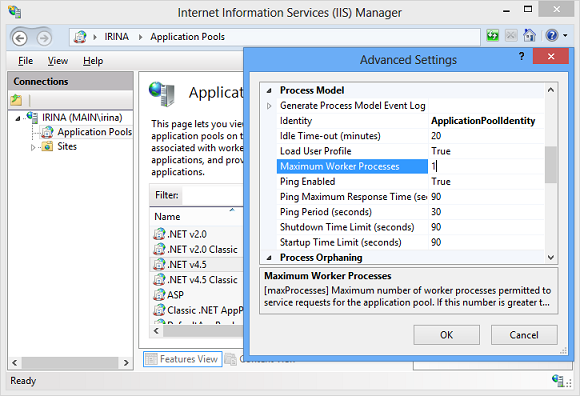
Setting the **MediumTrustCompatibility** property to `true` requires an application's pool to be routed to a single worker process. To perform this run IIS Manager, choose the application pool under which your website works, click **Advanced Settings** in the **Actions** panel, and set **Maximum Worker Processes** to `1`:
**Note**
If you do not know which application pool is used by your website, choose this website in the **Connections** panel of IIS manager, open **Basic Settings...** in the **Actions** panel, and find **Application pool** in the opened dialog.