---
title: "Customizing Appearance in HTML5/Flash Uploader"
canonical: https://www.aurigma.com/docs/us8/customizing-appearance-iuf.htm
product: "Upload Suite 8"
---
# Customizing Appearance in HTML5/Flash Uploader
Supported technologies: 
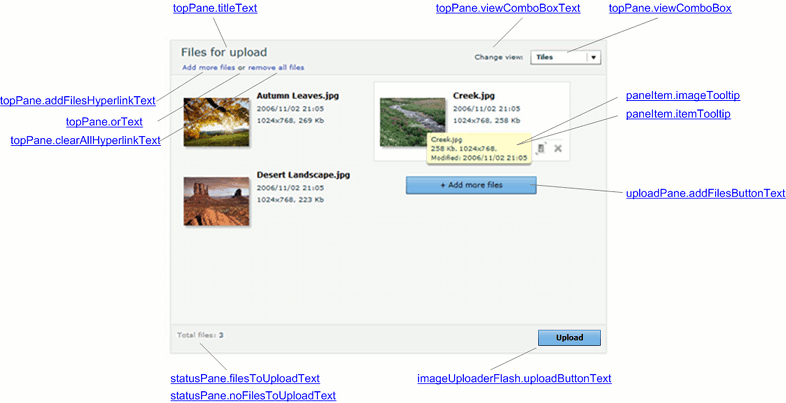
The figures below demonstrate what elements of HTML5/Flash Uploader can be changed and which properties are responsible for the changes. If you click the property name, you will get the reference description of this property.
## HTML5/Flash Uploader Layout
The following screenshot demonstrates HTML5/Flash Uploader layout. Here it is shown how to carry out the changes:
- **Top Pane** labels;
- **Change view** box items;
- **Upload Pane** button and tooltips;
- **Status Pane** elements.
## View Modes
There are three view modes intended to browse user-selected files in a more convenient way.
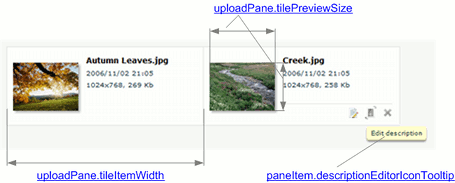
### Tiles View
In this view files appear as thumbnails (or icons for non-image files) with a file name and details. Here you can set the tile width and the thumbnail dimensions.
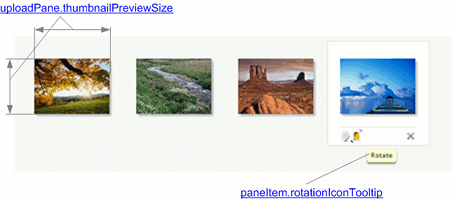
### Thumbnails View
This view displays thumbnails (or icons for non-image files) only. Thus, only the thumbnail dimensions can be modified.
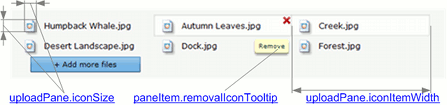
### Icons View
In this view files appear as small icons with names on the right. Here it is available to change the width of the **Upload Pane** item (including an icon and file name) and the size of square the icon is inscribed in.
## Image Preview Window
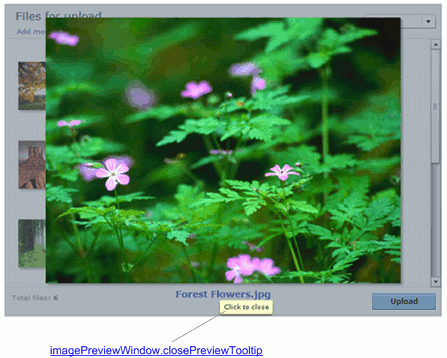
This screenshot shows **Image Preview** window which appears whenever a user double-clicks an image item in **Upload Pane**. Here you can modify a tooltip displaying when the **Image Preview** window is shown and the mouse pointer hovers over the **Status Pane**.
## Information Bar
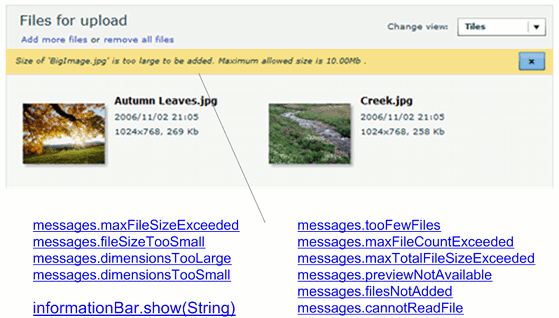
These messages are displayed when a user tries to add a file which does not meet the specified restrictions.
## Progress Details
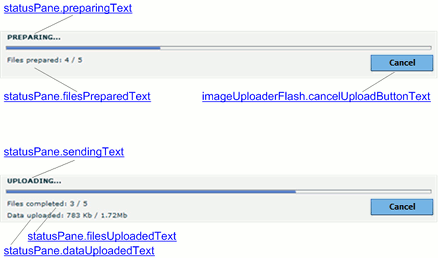
The screenshot below demonstrates the **Status Pane** during the upload process. Here you can change labels containing upload details and the button which terminates the upload.
## Upload Error Dialog
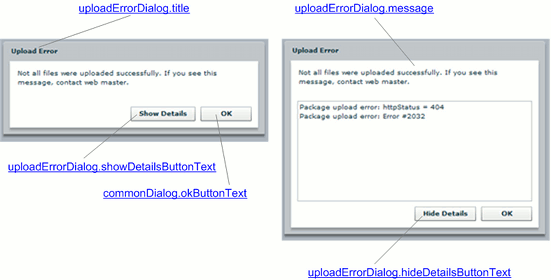
This dialog appears whenever some upload error occurs.
## See Also
### Manual
- [HTML5/Flash Uploader User Interface](https://www.aurigma.com/docs/us8/image-uploader-flash-user-interface.htm.md)
- [Localization of HTML5/Flash Uploader](https://www.aurigma.com/docs/us8/localization-iuf.htm.md)