---
title: "Debugging ActiveX/Java Upload Scripts in Other Platforms"
canonical: https://www.aurigma.com/docs/us8/debugging-upload-scripts-in-other-platforms-iu.htm
product: "Upload Suite 8"
---
# Debugging ActiveX/Java Upload Scripts in Other Platforms
This topic describes different approaches to solving the issue when ActiveX/Java Uploader is unable to successfully upload files and displays the following error message:
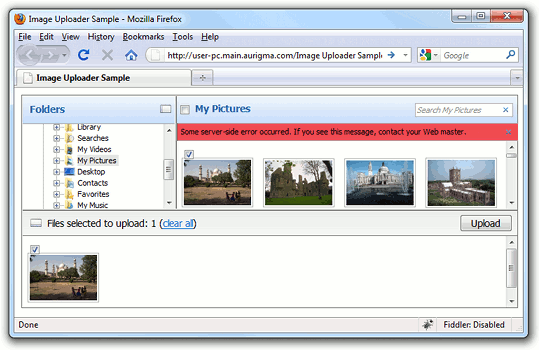
As well, sometimes you may see the message saying that upload is successful, but files appear to be not uploaded; this may indicate a server error but not necessarily.
In this case, please, firstly check that you specified at least one [converter](https://www.aurigma.com/docs/us8/JA_T_J_$au_converter.htm.md), your upload script really saves files, and you are looking for files in the correct folder.
Here are the most probable issues causing the server-side error:
- ActiveX/Java Uploader cannot save uploaded files because of wrong permissions configuration. See the [Installation and Deployment Notes](https://www.aurigma.com/docs/us8/installation-and-deployment-notes.htm.md) topic to learn how to set required permissions.
- The request size is too big. See your web server documentation to get to know how to increase maximum request length.
- There is an error in your upload script (specified with the [uploadSettings.actionUrl](https://www.aurigma.com/docs/us8/JA_P_J_$au_uploadSettings_actionUrl.htm.md) property). See the debug approaches described below to find the error.
**Note**
If you experience an issue having different sympthoms than those described in this article, please, see the [Basic Steps in Troubleshooting of ActiveX/Java Uploader](https://www.aurigma.com/docs/us8/troubleshooting-basic-steps.htm.md) topic.
Here we consider the following approaches to handling and debugging server-side errors:
- Event handling approach implies showing the server response when some error occurs. If displaying errors is enabled, this response contains error details. However, this approach requires some modifications of ActiveX/Java Uploader settings.
- Using sniffer allows you to view server response without necessity to modify embedding code, but it uses a third-party tool.
- Using debug console allows you to view errors, debug messages from ActiveX/Java Uploader, and information messages.
## Event Handling
If you are not familiar with the client events in ActiveX/Java Uploader, please, read the [Using JavaScript API](https://www.aurigma.com/docs/us8/using-javascript-api.htm.md) topic first.
ActiveX/Java Uploader provides two events which are helpful for debugging, namely, [Error](https://www.aurigma.com/docs/us8/JA_E_Uploader_Error.htm.md) and [AfterUpload](https://www.aurigma.com/docs/us8/JA_E_Uploader_AfterUpload.htm.md). The first one fires when a server or client-side error occurs, and the second fires when an upload is supposed to be successful. We recommend to handle both events simultaneously to get debug information on server errors.
The **Error** event provides detailed description of an occurred error through the **errorPage** parameter which represents the web page returned from the server. To ignore non-server errors you can use the **errorCode** argument, since it is equal to `4` in case of internal server error. For the full list of error codes, please, see the [Error event parameters](https://www.aurigma.com/docs/us8/JA_E_Uploader_Error.htm.md) paragraph.
The idea of catching errors via the **AfterUpload** event is as follows:
1. Make your upload script to return some predefined response after all the uploaded files were saved.
2. In the **AfterUpload** event handler check whether a string returned by the **response** parameter contains the predefined one.
3. If this check has failed, then an error has occurred and the **response** parameter contains the error-related information.
Let us presume that server-side upload script returns a `"complete"` string (predefined response) after all the uploaded files were saved, then the following code will show error details if a server-side error occurs.
```
```
## Using Sniffer
As an example of network analyzer tool we use the [Fiddler↗](http://www.fiddler2.com/). Here we discuss how to use it to debug server-side upload script.
1. Open your application in browser. If it is able to send traffic to Fiddler, the corresponded session will be displayed in the **Web Sessions** pane of the tool.
2. Send a file via ActiveX/Java Uploader.
3. Double-click the session with server error in the **Web Sessions** pane.
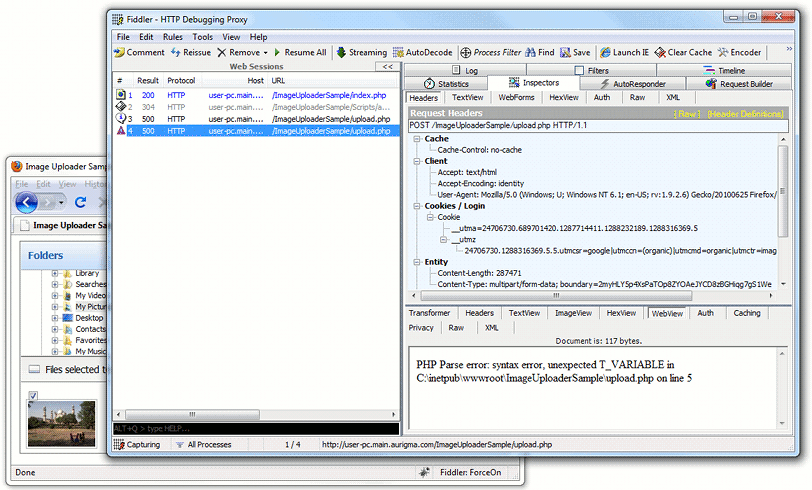
Find upload session details in the left part of Fiddler's interface. Here it contains the POST request sent by ActiveX/Java Uploader and the response returned by your upload script. If your upload script contains an error this error details will be displayed in the returned response.
## Using Debug Console
You can use the [debug](https://www.aurigma.com/docs/us8/JA_T_J_$au_debug.htm.md) class and the error console of browser to view ActiveX/Java Uploader error and warning messages along with the response returned by your upload script.
In order to do it you should, firstly, insert the following code before rendering ActiveX/Java Uploader:
```
```
Secondly, open the console. Here are the ways to open the console in the most popular browsers:
- In Internet Explorer 8 open **Tools -> Developer Tools** (or press F12), then select **Script** tab in the left pane and click **Console** in the right pane.
- In Mozilla Firefox we recommend to use [Firebug](https://addons.mozilla.org/en-US/firefox/addon/1843/).
- In Google Chrome click the **Wrench** icon and select **Tools -> JavaScript Console** (or press Ctrl+Shift+J).
- In Safari turn on the **Develop** menu in the **Advanced** pane of **Safari Preferences**, after that go to **Develop -> Show Error Console** (or press Cmd+Alt+C).
If your browser has no error console, please, allow pop-up windows in your browser.
For more information about the **debug** class, please, see the [Using JavaScript API](https://www.aurigma.com/docs/us8/using-javascript-api.htm.md) topic.
## See Also
### Reference
- [Error Event](https://www.aurigma.com/docs/us8/JA_E_Uploader_Error.htm.md)
- [uploadSettings.actionUrl Property](https://www.aurigma.com/docs/us8/JA_P_J_$au_uploadSettings_actionUrl.htm.md)
- [converter Class](https://www.aurigma.com/docs/us8/JA_T_J_$au_converter.htm.md)
### Manual
- [Basic Steps in Troubleshooting of ActiveX/Java Uploader](https://www.aurigma.com/docs/us8/troubleshooting-basic-steps.htm.md)
- [Installation and Deployment Notes](https://www.aurigma.com/docs/us8/installation-and-deployment-notes.htm.md)
### Other Resources
- [Fiddler↗](http://www.fiddler2.com/)
- [Firebug](https://addons.mozilla.org/en-US/firefox/addon/1843/)