---
title: "HTML5/Flash Uploader User Interface"
canonical: https://www.aurigma.com/docs/us8/image-uploader-flash-user-interface.htm
product: "Upload Suite 8"
---
# HTML5/Flash Uploader User Interface
Supported technologies: 
This topic overviews HTML5/Flash Uploader user interface.
## Layout
The control layout can be divided into three parts, namely **Top Pane**, **Upload Pane**, and **Status Pane**. These parts are highlighted in the following screenshot.
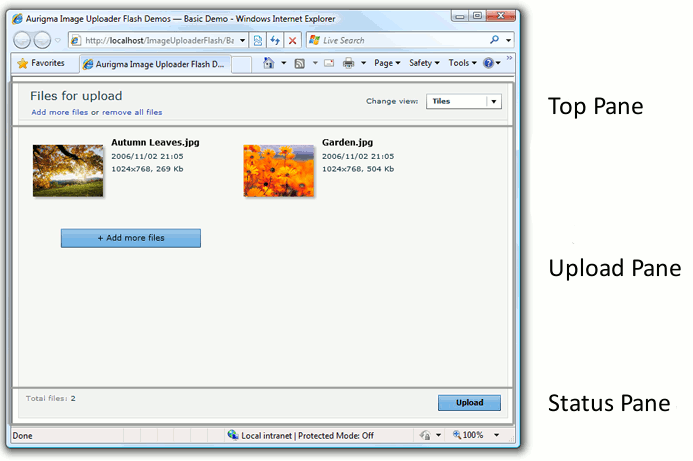
Let us consider these parts in detail.
### Top Pane
This part displays a customizable title as well as links to add files to the upload list and clear it. This pane contains the **Change view** box on the right that allows users to switch between file display modes.
All the captions displayed on this pane can be modified via the properties of the TopPane[TopPane (ASP.NET)](https://www.aurigma.com/docs/us8/FH_T_Aurigma_ImageUploaderFlash_TopPane.htm.md)[TopPane (PHP)](https://www.aurigma.com/docs/us8/FH_T_P_TopPane.htm.md)[topPane (JavaScript)](https://www.aurigma.com/docs/us8/FH_T_J_$au_topPane.htm.md) class.
### Upload Pane
This part represents the upload list. It allows browsing user-selected files using one of the available view modes. The order of files in the upload list determines the upload order. To re-arrange files added to the **Upload Pane** drag them onto the pane. This part can be customized through the properties of the UploadPane[UploadPane (ASP.NET)](https://www.aurigma.com/docs/us8/FH_T_Aurigma_ImageUploaderFlash_UploadPane.htm.md)[UploadPane (PHP)](https://www.aurigma.com/docs/us8/FH_T_P_UploadPane.htm.md)[uploadPane (JavaScript)](https://www.aurigma.com/docs/us8/FH_T_J_$au_uploadPane.htm.md) class.
Each file in **Upload Pane** can be provided with a description, rotated (for image files only), and removed from it. To perform these actions use the additional controls.
### Status Pane
The information displayed on the **Status Pane** depends on HTML5/Flash Uploader state. Thus, when a user adds files to the upload list, **Status Pane** displays a total number of files in this list and looks like a screenshot above. If a user clicks **Upload** the upload starts and **Status Pane** indicates this process using progress bar and status information.
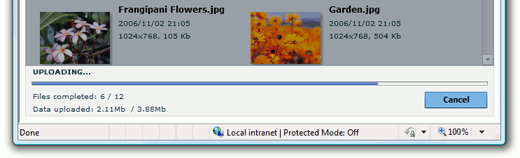
Information providing by this pane can be configured using the StatusPane[StatusPane (ASP.NET)](https://www.aurigma.com/docs/us8/FH_T_Aurigma_ImageUploaderFlash_StatusPane.htm.md)[StatusPane (PHP)](https://www.aurigma.com/docs/us8/FH_T_P_StatusPane.htm.md)[statusPane (JavaScript)](https://www.aurigma.com/docs/us8/FH_T_J_$au_statusPane.htm.md) class properties.
When upload starts the **Upload** button is replaced with the **Cancel** which terminates the upload process. Both these buttons can be customized through the ImageUploaderFlash[ImageUploaderFlash (ASP.NET)](https://www.aurigma.com/docs/us8/FH_T_Aurigma_ImageUploaderFlash_ImageUploaderFlash.htm.md)[ImageUploaderFlash (PHP)](https://www.aurigma.com/docs/us8/FH_T_P_ImageUploaderFlash.htm.md)[imageUploaderFlash (JavaScript)](https://www.aurigma.com/docs/us8/FH_T_J_$au_imageUploaderFlash.htm.md) class.
## View Modes
HTML5/Flash Uploader is intended for mass file upload, so it allows users to browse selected files. These files are displayed in the **Upload Pane** part of the control layout using one of the available view modes. There are three view modes, namely tiles, thumbnails, and icons. Users can change view mode with the **Change view** box located on the **Top Pane**. Moreover, you can set a default mode using the UploadPane.ViewMode[ViewMode (ASP.NET)](https://www.aurigma.com/docs/us8/FH_P_Aurigma_ImageUploaderFlash_UploadPane_ViewMode.htm.md)[ViewMode (PHP)](https://www.aurigma.com/docs/us8/FH_P_P_UploadPane_ViewMode.htm.md)[viewMode (JavaScript)](https://www.aurigma.com/docs/us8/FH_P_J_$au_uploadPane_viewMode.htm.md) property.
### Tiles
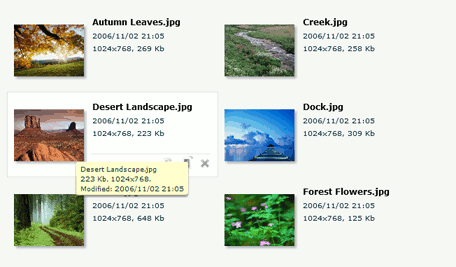
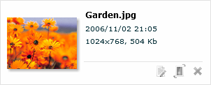
This view is intended for displaying files of various types. Here each file appears as a thumbnail (or icon for non-image files), with a file name and details ('last modified' date, image dimensions, and file size) on the right. This is the most informative mode; however, it requires much space to display the user-selected file. Thus, the number of files displayed at a time is smaller than in other views.
### Thumbnails
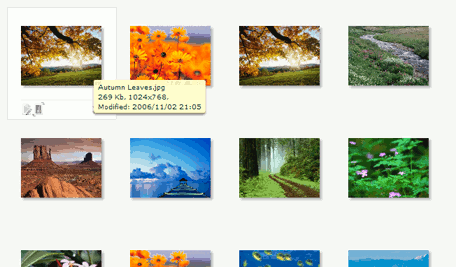
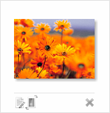
This mode is mostly used for browsing image files. It displays files as large thumbnails without any additional information. However, if users want to know a file name or size, they just need to move the mouse pointer over the thumbnail. This mode allows simultaneously to display more files than the previous one.
### Icons
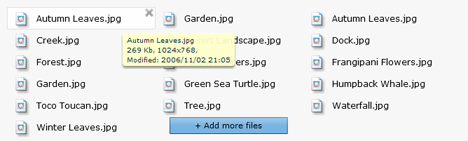
This view is used to browse files of various types. It displays user-selected files as small icons with names on the right. The advantage of this view is that more files can be seen at a time.
## Additional Controls
Additional controls appear when a mouse pointer hovers over thumbnails or icons. Using these controls a user can remove files from the upload list, rotate images, and add descriptions to files. The layout of additional controls depends on selected view mode.
| Tiles | Thumbnails | Icons |
| --- | --- | --- |
|  |  |  |
The additional controls themselves can be customized using the properties of the PaneItem[PaneItem (ASP.NET)](https://www.aurigma.com/docs/us8/FH_T_Aurigma_ImageUploaderFlash_PaneItem.htm.md)[PaneItem (PHP)](https://www.aurigma.com/docs/us8/FH_T_P_PaneItem.htm.md)[paneItem (JavaScript)](https://www.aurigma.com/docs/us8/FH_T_J_$au_paneItem.htm.md) class.
## Image Preview
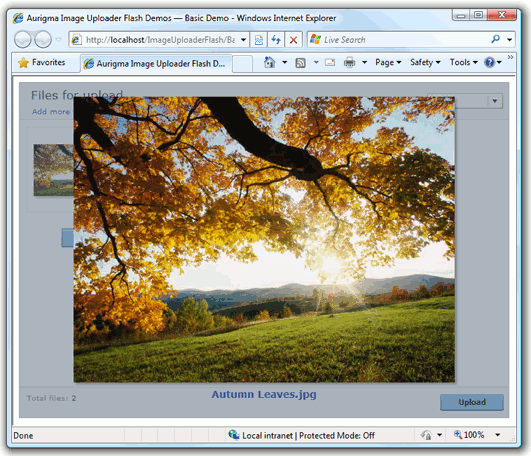
**Image Preview** is an additional window which appears when a user double-clicks an image item in the **Upload Pane** regardless of selected view mode.
## See Also
### Reference
- TopPane Class[TopPane (ASP.NET)](https://www.aurigma.com/docs/us8/FH_T_Aurigma_ImageUploaderFlash_TopPane.htm.md)[TopPane (PHP)](https://www.aurigma.com/docs/us8/FH_T_P_TopPane.htm.md)[topPane (JavaScript)](https://www.aurigma.com/docs/us8/FH_T_J_$au_topPane.htm.md)
- UploadPane Class[UploadPane (ASP.NET)](https://www.aurigma.com/docs/us8/FH_T_Aurigma_ImageUploaderFlash_UploadPane.htm.md)[UploadPane (PHP)](https://www.aurigma.com/docs/us8/FH_T_P_UploadPane.htm.md)[uploadPane (JavaScript)](https://www.aurigma.com/docs/us8/FH_T_J_$au_uploadPane.htm.md)
- PaneItem Class[PaneItem (ASP.NET)](https://www.aurigma.com/docs/us8/FH_T_Aurigma_ImageUploaderFlash_PaneItem.htm.md)[PaneItem (PHP)](https://www.aurigma.com/docs/us8/FH_T_P_PaneItem.htm.md)[paneItem (JavaScript)](https://www.aurigma.com/docs/us8/FH_T_J_$au_paneItem.htm.md)
- StatusPane Class[StatusPane (ASP.NET)](https://www.aurigma.com/docs/us8/FH_T_Aurigma_ImageUploaderFlash_StatusPane.htm.md)[StatusPane (PHP)](https://www.aurigma.com/docs/us8/FH_T_P_StatusPane.htm.md)[statusPane (JavaScript)](https://www.aurigma.com/docs/us8/FH_T_J_$au_statusPane.htm.md)
- ImageUploaderFlash Class[ImageUploaderFlash (ASP.NET)](https://www.aurigma.com/docs/us8/FH_T_Aurigma_ImageUploaderFlash_ImageUploaderFlash.htm.md)[ImageUploaderFlash (PHP)](https://www.aurigma.com/docs/us8/FH_T_P_ImageUploaderFlash.htm.md)[imageUploaderFlash (JavaScript)](https://www.aurigma.com/docs/us8/FH_T_J_$au_imageUploaderFlash.htm.md)
- ImagePreviewWindow Class[ImagePreviewWindow (ASP.NET)](https://www.aurigma.com/docs/us8/FH_T_Aurigma_ImageUploaderFlash_ImagePreviewWindow.htm.md)[ImagePreviewWindow (PHP)](https://www.aurigma.com/docs/us8/FH_T_P_ImagePreviewWindow.htm.md)[imagePreviewWindow (JavaScript)](https://www.aurigma.com/docs/us8/FH_T_J_$au_imagePreviewWindow.htm.md)
### Manual
- [Customizing Appearance in HTML5/Flash Uploader](https://www.aurigma.com/docs/us8/customizing-appearance-iuf.htm.md)
- [Using Precompiled SWF Themes in Flash Uploader](https://www.aurigma.com/docs/us8/using-precompiled-themes.htm.md)