---
title: "Layouts"
canonical: https://www.aurigma.com/docs/us8/layouts.htm
product: "Upload Suite 8"
---
# Layouts
ActiveX/Java Uploader has two different-looking layouts that determine its appearance. To specify which one of them should be used, set the Uploader.PaneLayout[PaneLayout (ASP.NET)](https://www.aurigma.com/docs/us8/JA_P_Aurigma_ImageUploader_Uploader_PaneLayout.htm.md)[PaneLayout (PHP)](https://www.aurigma.com/docs/us8/JA_P_P_Uploader_PaneLayout.htm.md)[paneLayout (JavaScript)](https://www.aurigma.com/docs/us8/JA_P_J_$au_uploader_paneLayout.htm.md) property.
## Three Panes Layout
This is a default layout which consists of three panes:
- Tree pane is the folder tree allowing users to navigate their file systems.
- Folder pane displays the content of the currently selected folder.
- Upload pane contains files ready to be uploaded.
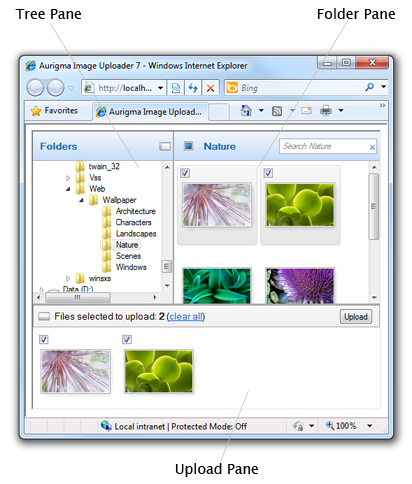
Both the tree and upload panes are collapsible.
ActiveX/Java Uploader displays this layout when the **Uploader.PaneLayout** property is `ThreePanes`.
```aspx-cs
``` ```
$uploader = new Uploader("Uploader1");
$uploader->setPaneLayout("ThreePanes");
``` ```
var u = $au.uploader({
id: 'Uploader1',
paneLayout: 'ThreePanes'
});
```
### Uploading Files
To upload files in this layout, follow these steps:
1. In the tree pane select a folder containing necessary files and/or folders.
2. In the folder pane check desired files and/or folders or drag-and-drop them onto the upload pane. To check all files at once use the **Check all** option of the context menu.
3. Select necessary files and/or folders in Windows Explorer, Finder, or any other graphic shell you use and drop them onto the upload pane.
4. Repeat Steps 1-3 until all the necessary files are added to the upload pane.
5. Click the **Upload** button.
## One Pane Layout
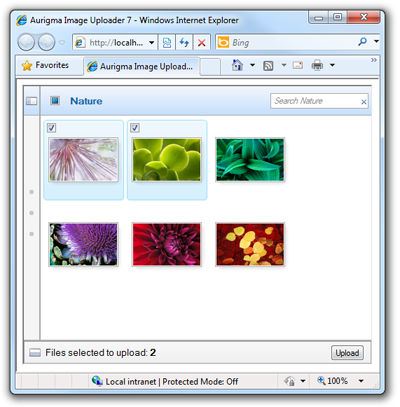
The one pane layout is more minimalistic than a default one. Here ActiveX/Java Uploader displays only the upload pane representing a list of files selected for upload.
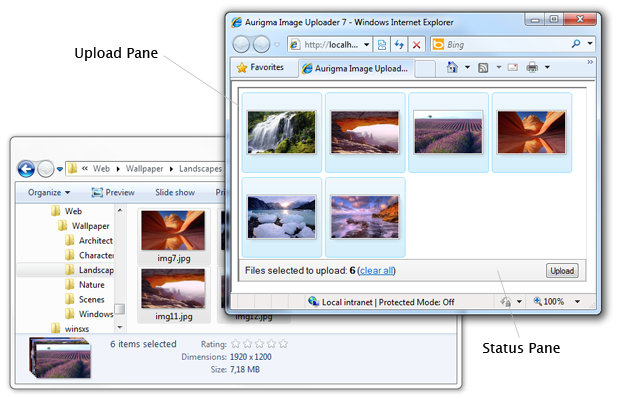
To specify this layout set the **Uploader.PaneLayout** property to the `OnePane` value:
```aspx-cs
``` ```
$uploader = new Uploader("Uploader1");
$uploader->setPaneLayout("OnePane");
``` ```
var u = $au.uploader({
id: 'Uploader1',
paneLayout: 'OnePane'
});
```
### Uploading Files
1. Add files to the upload pane using the following ways:
- Select necessary files and/or folders in Windows Explorer, Finder, or any other graphic shell you use and drop them onto the upload pane.
- Call the [uploadPane.addFiles()](https://www.aurigma.com/docs/us8/JA_M_J_$au_uploadPane_addFiles.htm.md) method and select files in the standard **Open File** dialog.
- Call the [uploadPane.addFolders()](https://www.aurigma.com/docs/us8/JA_M_J_$au_uploadPane_addFolders.htm.md) method and select a folder in the standard **Open Folder** dialog.
2. Repeat Step 1 until all the necessary files are added to the upload pane.
3. Click the **Upload** button.
## See Also
### Reference
- PaneLayout Property[PaneLayout (ASP.NET)](https://www.aurigma.com/docs/us8/JA_P_Aurigma_ImageUploader_Uploader_PaneLayout.htm.md)[PaneLayout (PHP)](https://www.aurigma.com/docs/us8/JA_P_P_Uploader_PaneLayout.htm.md)[paneLayout (JavaScript)](https://www.aurigma.com/docs/us8/JA_P_J_$au_uploader_paneLayout.htm.md)
### Manual
- [View Modes](https://www.aurigma.com/docs/us8/view-modes.htm.md)
- [Customizing Appearance in ActiveX/Java Uploader](https://www.aurigma.com/docs/us8/customizing-appearance-iu.htm.md)