---
title: "Quick Start with HTML5/Flash Uploader ASP.NET"
canonical: https://www.aurigma.com/docs/us8/quick-start-with-image-uploader-flash-aspnet.htm
product: "Upload Suite 8"
---
# Quick Start with HTML5/Flash Uploader ASP.NET
Supported technologies: 
HTML5/Flash Uploader ASP.NET is set of ASP.NET server controls intended to deploy HTML5/Flash Uploader, configuring it, and handling uploaded data easier. It allows ASP.NET developers to utilize HTML5/Flash Uploader in a straight-forward way just as a common ASP.NET server control, and provides the following advantages over a standard way of deployment (this way is described in the [Quick Start with HTML5/Flash Uploader JavaScript](https://www.aurigma.com/docs/us8/quick-start-with-image-uploader-flash-javascript.htm.md) topic):
- Easy to insert HTML5/Flash Uploader into ASP.NET Web Form. You just drag and drop the control onto your page in Visual Studio designer, and it automatically generates client-side code and deploys HTML5/Flash Uploader-related files.
- Ability to configure HTML5/Flash Uploader in Visual Studio using **Properties** editor.
- Simplification of server upload script. The control gets data sent from the client, parses it, and provides typed access to this data server-side.
- Autosave of uploaded files. HTML5/Flash Uploader ASP.NET allows you to create your upload solution without writing a line of code.
## Adding Control to Page
To add HTML5/Flash Uploader ASP.NET into a web page just walk through the following steps:
1. Create new ASP.NET Web site (in Visual Studio 2008 menu **File** -> **New** -> **Web Site...**).
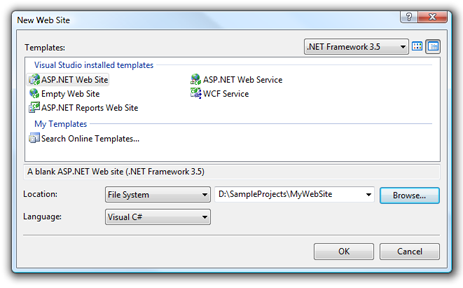
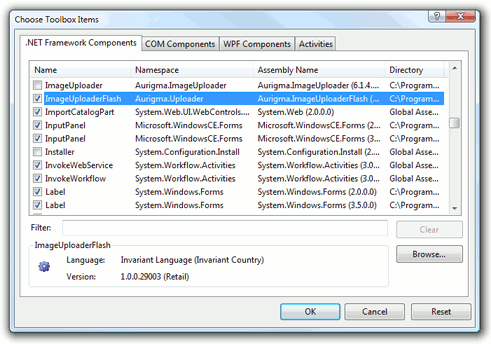
2. Add HTML5/Flash Uploader ASP.NET to the toolbox:
- Right-click on the tab of toolbox where you want to add this control and select **Choose Items...**.
- Find the **ImageUploaderFlash** in the **.NET Framework Components** tab.
- If you cannot find this component, click **Browse...** and find the ` Aurigma.ImageUploaderFlash.dll` assembly. This DLL can be found in HTML5/Flash Uploader installation folder (typically this is `C:\Program Files\Aurigma\Upload Suite 8.5.81\HTML5-Flash\`).
- Click **OK** on both **Open** and **Choose Toolbox Items** dialogs.
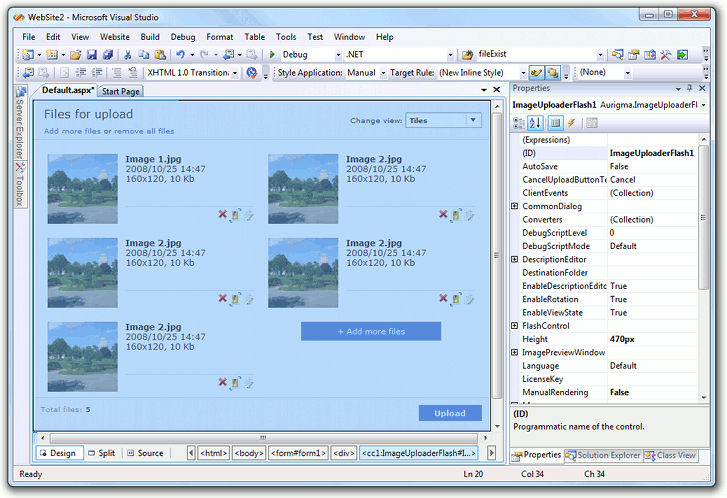
3. Open the page where HTML5/Flash Uploader should be placed in the design mode, then drag and drop the **ImageUploaderFlash** item into the desired position.
4. Set this page as a start page. To do this, right-click this page (`default.aspx`) in **Solution Explorer** and select the **Set As Start Page** menu option.
## Adding UploaderModule to Application
You should add the [UploaderModule](https://www.aurigma.com/docs/us8/FH_T_Aurigma_ImageUploaderFlash_UploaderModule.htm.md) module to a web application in order to make the application working properly with HTML5/Flash Uploader. To do it, depending on the IIS version and mode you should add the following element to `web.config` file:
```xml
```
either to the `` (IIS6 and IIS7 in classic mode) or `` (IIS7 in integrated mode) section. As a result the `web.config` file will look as follows:
```xml
```
## Defining Uploader Type
By default, HTML5/Flash Uploader has HTML5 Uploader enabled. If a user opens a page in a HTML5-compliant browser (see [the supported browsers table](https://www.aurigma.com/docs/us8/before-you-started-iuf.htm.md)), HTML5 Uploader is displyed. Otherwise Flash Uploader comes up. You can change this behavior by defining upload technology in your application (you will need this customization if you plan to use one the features which are not supported by HTML5 Uploader). Use the [Type](https://www.aurigma.com/docs/us8/FH_P_Aurigma_ImageUploaderFlash_BaseControl_Type.htm.md) property to perform this. The property possible values are `"html|flash"` (default value), `"flash|html"`, `"html"`, and `"flash"`.
The following snippet configures HTML5/Flash Uploader to use the Flash control by default, and the HTML5 control if the client browser does not support flash:
```aspx-cs
```
## Uploading Files
Let us examine HTML5/Flash Uploader ASP.NET usage by the example of a simple file catalog. Suppose that the catalog requires a user to upload files of various types and displays links to download these files. To perform this task we can phase it as follows.
### Configuring Control
There are two ways to configure HTML5/Flash Uploader. The first is to use the list of control properties in **Properties** editor. See the [HTML5/Flash Uploader ASP.NET Reference](https://www.aurigma.com/docs/us8/FH_R_Aurigma_ImageUploaderFlash.htm.md) for the detailed information about available properties.
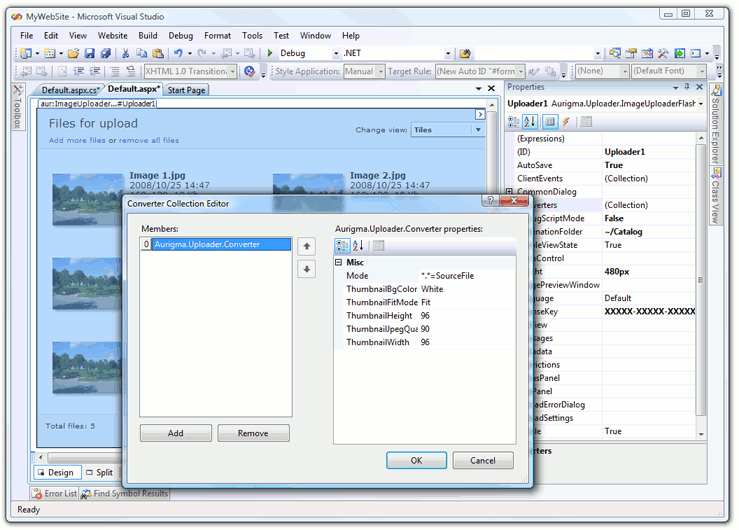
The second way is to modify [ImageUploaderFlash](https://www.aurigma.com/docs/us8/FH_T_Aurigma_ImageUploaderFlash_ImageUploaderFlash.htm.md) properties in the source of an ASP.NET page declaratively. See the source code of the main page of our catalog (`default.aspx`) below.
```aspx-cs
<%@ Page Language="C#" AutoEventWireup="true" CodeFile="Default.aspx.cs" Inherits="_Default" %>
<%@ Register assembly="Aurigma.ImageUploaderFlash" namespace="Aurigma.ImageUploaderFlash" tagprefix="aur" %>
ASP.NET Control Sample
```
On this page we set mandatory parameters, such as HTML5/Flash Uploader identifier and its dimensions, as well as optional parameters required by our file catalog. Here we enable the autosave feature and set a page to which the user will be redirected when the upload successfully completes. To configure HTML5/Flash Uploader to send original files we use the [ImageUploaderFlash.Converters](https://www.aurigma.com/docs/us8/FH_P_Aurigma_ImageUploaderFlash_ImageUploaderFlash_Converters.htm.md) property which accepts a set of [Converter](https://www.aurigma.com/docs/us8/FH_T_Aurigma_ImageUploaderFlash_Converter.htm.md) instances. Each instance specifies what will be uploaded (original file as is, thumbnail created from original image file, icon associated with original file, or original file compressed into ZIP archive) for each of the user-selected files. Since we need to upload only original files, we set one converter with the **SourceFile** mode. Read more about converters in the [Configuring Files to be Uploaded in HTML5/Flash Uploader](https://www.aurigma.com/docs/us8/configuring-files-to-be-uploaded-iuf.htm.md) topic.
One more significant property is [ImageUploaderFlash.LicenseKey](https://www.aurigma.com/docs/us8/FH_P_Aurigma_ImageUploaderFlash_ImageUploaderFlash_LicenseKey.htm.md) which specifies trial or full license key. If license key is not set HTML5/Flash Uploader will not send files (the exception is usage of uploader on `localhost` domain). See the [Registering HTML5/Flash Uploader](https://www.aurigma.com/docs/us8/registering-image-uploader-flash.htm.md) topic for details.
### Handling Upload
This sample demonstrates how to configure the autosave feature of HTML5/Flash Uploader ASP.NET. This feature saves you the trouble of writing server-side upload script yourself. All you need is to set the [AutoSave](https://www.aurigma.com/docs/us8/FH_P_Aurigma_ImageUploaderFlash_BaseUploadControl_AutoSave.htm.md) property to `true`. Then specify the folder where you want to save files via the [DestinationFolder](https://www.aurigma.com/docs/us8/FH_P_Aurigma_ImageUploaderFlash_BaseUploadControl_DestinationFolder.htm.md) property. The code snippet above demonstrates how these properties can be specified. Now all the files sent by HTML5/Flash Uploader will be saved to this folder.
### Displaying Uploaded Files
On the configuring step we set the [UploadSettings.RedirectUrl](https://www.aurigma.com/docs/us8/FH_P_Aurigma_ImageUploaderFlash_UploadSettings_RedirectUrl.htm.md) property to the `"catalog.aspx"` value. It means that HTML5/Flash Uploader will redirect users to this page after the upload is successfully completed. It would be convenient to list links to the uploaded files here. To implement this functionality we iterate through all the files stored in the `/Catalog` folder and display a link to each of them. See the source code below.
`catalog.aspx`:
```aspx-cs
<%@ Page Language="C#" AutoEventWireup="true" CodeFile="Catalog.aspx.cs" Inherits="Catalog" %>
Catalog
<%# System.IO.Path.GetFileName(Container.DataItem.ToString()) %>
```
`catalog.aspx.cs`:
```csharp
using System;
public partial class Catalog : System.Web.UI.Page
{
protected string catalogPath;
protected void Page_Load(object sender, EventArgs e)
{
catalogPath = "Catalog/";
DataList1.DataSource = System.IO.Directory.GetFiles(Server.MapPath(catalogPath));
DataList1.DataBind();
}
}
```
**Note**
You may run the file catalog application considered here on your server. To do this, just paste source code to `default.aspx`, `catalog.aspx`, and `catalog.aspx.cs` files to your server using the following folder structure:
```
/binAurigma.ImageUploaderFlash.dll
/Catalog
catalog.aspx
catalog.aspx.cs
default.aspx
```
Make sure that the `/Catalog` folder has [enough permissions](https://www.aurigma.com/docs/us8/installation-and-deployment-notes.htm.md) to save files to.
## Uploading Images
One more example of HTML5/Flash Uploader usage is an image gallery. Suppose, it requires a user to upload original images along with their downsized copies. This task can be divided into the same phases as the previous one.
### Configuring Control
The configuration of the HTML5/Flash Uploader ASP.NET used for our image gallery is almost the same as for the file catalog described above.
```aspx-cs
<%@ Page Language="C#" AutoEventWireup="true" CodeFile="Default.aspx.cs" Inherits="_Default" %>
<%@ Register assembly="Aurigma.ImageUploaderFlash" namespace="Aurigma.ImageUploaderFlash" tagprefix="aur" %>
ASP.NET Control Sample
```
The difference is that we set an additional converter to specify a thumbnail which will be created for each image file and will be fitted to 120x120 pixels. Read more about converters in the [Configuring Files to be Uploaded in HTML5/Flash Uploader](https://www.aurigma.com/docs/us8/configuring-files-to-be-uploaded-iuf.htm.md) topic.
### Handling Upload
The gallery uses the autosave feature as well as the file catalog. So it releases you from necessary to handle the upload by yourself.
Pay attention that the names of files stored in the destination folder are not equal to the original filenames. Each name has a suffix corresponding to the converter used to create this file (except for the `SourceFile` one). In our sample we set two converters, that is why there are two files stored for each user-selected file:
- `name.ext`, the original file specified with the first converter
- `name.ext_Thumbnail1.jpg`, a downsized copy of the original image configured with the second converter
See the [ConvertedFile.Name](https://www.aurigma.com/docs/us8/FH_P_Aurigma_ImageUploaderFlash_ConvertedFile_Name.htm.md) property description for a full list of possible suffixes.
### Displaying Uploaded Images
On the configuring step we specified the **UploadSettings.RedirectUrl** property to the `"gallery.aspx"` value. It means that HTML5/Flash Uploader will redirect users to this page after the upload is successfully completed. It would be convenient to display uploaded images here. To implement this functionality we iterate through all the files stored in the destination folder and display each thumbnail (file with `_Thumbnail1` suffix) as a link to its original image (no suffix). See comments in the source code below.
`gallery.aspx`:
```aspx-cs
<%@ Page Language="C#" AutoEventWireup="true" CodeFile="Gallery.aspx.cs" Inherits="Gallery" %>
<%@ Import Namespace="System.Collections.Generic" %>
Gallery
Container.DataItem).Value %>) ```
`gallery.aspx.cs`:
```csharp
using System;
public partial class Gallery : System.Web.UI.Page
{
protected string galleryPath;
protected void Page_Load(object sender, EventArgs e)
{
galleryPath = "Gallery/";
System.IO.DirectoryInfo dir = new System.IO.DirectoryInfo(Server.MapPath(galleryPath));
//A key-value pair collection. Key - name of the original file, value - thumbnail filename
System.Collections.Generic.Dictionary files =
new System.Collections.Generic.Dictionary();
//Iterate through all files
foreach (System.IO.FileInfo file in dir.GetFiles())
{
int pos = file.Name.IndexOf("_Thumbnail1");
//The file is not a thumbnail, so it is a source file
if (pos == -1)
{
//Construct name of the corresponded thumbnail
string thumbnailName = file.Name + "_Thumbnail1.jpg";
//Check if this thumbnail exists
if (System.IO.File.Exists(dir.FullName + thumbnailName))
{
files.Add(file.Name, thumbnailName);
}
}
}
DataList1.DataSource = files;
DataList1.DataBind();
}
```
**Note**
You may run this image gallery application on your server. To do this, just paste source code to `default.aspx`, `gallery.aspx`, and `gallery.aspx.cs` files to your server using the following folder structure:
```
/binAurigma.ImageUploaderFlash.dll
/Gallery
default.aspx
gallery.aspx
gallery.aspx.cs
```
Make sure that `/Gallery` folder has [enough permissions](https://www.aurigma.com/docs/us8/installation-and-deployment-notes.htm.md) to save files to.
## See Also
### Reference
- [HTML5/Flash Uploader ASP.NET Reference](https://www.aurigma.com/docs/us8/FH_R_Aurigma_ImageUploaderFlash.htm.md)
- [ImageUploaderFlash Class](https://www.aurigma.com/docs/us8/FH_T_Aurigma_ImageUploaderFlash_ImageUploaderFlash.htm.md)
### Manual
- [Configuring Files to be Uploaded in HTML5/Flash Uploader](https://www.aurigma.com/docs/us8/configuring-files-to-be-uploaded-iuf.htm.md)
- [Configuring Common Upload Settings in HTML5/Flash Uploader](https://www.aurigma.com/docs/us8/configuring-common-upload-settings-iuf.htm.md)
- [Registering HTML5/Flash Uploader](https://www.aurigma.com/docs/us8/registering-image-uploader-flash.htm.md)
- [Installation and Deployment Notes](https://www.aurigma.com/docs/us8/installation-and-deployment-notes.htm.md)
- [Saving Uploaded Files in HTML5/Flash Uploader ASP.NET](https://www.aurigma.com/docs/us8/saving-uploaded-files-in-aspnet-iuf.htm.md)
### MSDN
- [Walkthrough: Creating and Registering a Custom HTTP Module↗](http://msdn.microsoft.com/en-us/library/ms227673%28v=vs.100%29.aspx)
```
`gallery.aspx.cs`:
```csharp
using System;
public partial class Gallery : System.Web.UI.Page
{
protected string galleryPath;
protected void Page_Load(object sender, EventArgs e)
{
galleryPath = "Gallery/";
System.IO.DirectoryInfo dir = new System.IO.DirectoryInfo(Server.MapPath(galleryPath));
//A key-value pair collection. Key - name of the original file, value - thumbnail filename
System.Collections.Generic.Dictionary files =
new System.Collections.Generic.Dictionary();
//Iterate through all files
foreach (System.IO.FileInfo file in dir.GetFiles())
{
int pos = file.Name.IndexOf("_Thumbnail1");
//The file is not a thumbnail, so it is a source file
if (pos == -1)
{
//Construct name of the corresponded thumbnail
string thumbnailName = file.Name + "_Thumbnail1.jpg";
//Check if this thumbnail exists
if (System.IO.File.Exists(dir.FullName + thumbnailName))
{
files.Add(file.Name, thumbnailName);
}
}
}
DataList1.DataSource = files;
DataList1.DataBind();
}
```
**Note**
You may run this image gallery application on your server. To do this, just paste source code to `default.aspx`, `gallery.aspx`, and `gallery.aspx.cs` files to your server using the following folder structure:
```
/binAurigma.ImageUploaderFlash.dll
/Gallery
default.aspx
gallery.aspx
gallery.aspx.cs
```
Make sure that `/Gallery` folder has [enough permissions](https://www.aurigma.com/docs/us8/installation-and-deployment-notes.htm.md) to save files to.
## See Also
### Reference
- [HTML5/Flash Uploader ASP.NET Reference](https://www.aurigma.com/docs/us8/FH_R_Aurigma_ImageUploaderFlash.htm.md)
- [ImageUploaderFlash Class](https://www.aurigma.com/docs/us8/FH_T_Aurigma_ImageUploaderFlash_ImageUploaderFlash.htm.md)
### Manual
- [Configuring Files to be Uploaded in HTML5/Flash Uploader](https://www.aurigma.com/docs/us8/configuring-files-to-be-uploaded-iuf.htm.md)
- [Configuring Common Upload Settings in HTML5/Flash Uploader](https://www.aurigma.com/docs/us8/configuring-common-upload-settings-iuf.htm.md)
- [Registering HTML5/Flash Uploader](https://www.aurigma.com/docs/us8/registering-image-uploader-flash.htm.md)
- [Installation and Deployment Notes](https://www.aurigma.com/docs/us8/installation-and-deployment-notes.htm.md)
- [Saving Uploaded Files in HTML5/Flash Uploader ASP.NET](https://www.aurigma.com/docs/us8/saving-uploaded-files-in-aspnet-iuf.htm.md)
### MSDN
- [Walkthrough: Creating and Registering a Custom HTTP Module↗](http://msdn.microsoft.com/en-us/library/ms227673%28v=vs.100%29.aspx)