---
title: "Using ActiveX Uploader Installation Progress"
canonical: https://www.aurigma.com/docs/us8/using-image-uploader-installation-progress.htm
product: "Upload Suite 8"
---
# Using ActiveX Uploader Installation Progress
Usually it takes some time to download and install ActiveX Uploader. Moreover, users have to perform additional actions to complete the installation of the control, for instance, click the information bars and accept security warnings. It all may confuse users and they may consider ActiveX Uploader as a security threat and cancel the installation. Because of this the control should display additional information while installation is in progress and provide users with instructions.
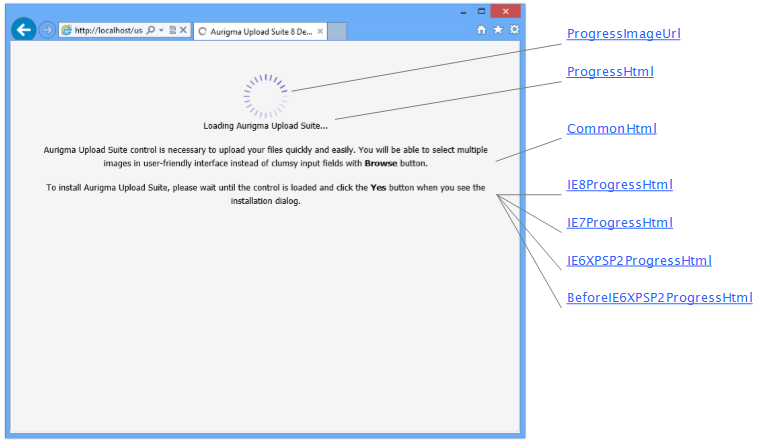
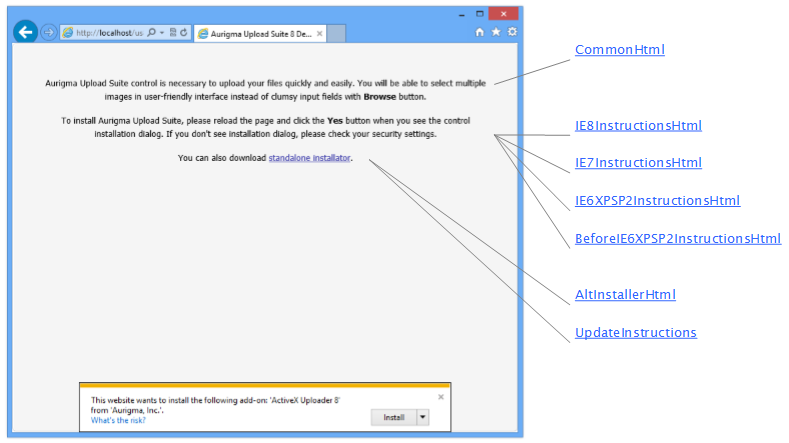
ActiveX Uploader enables this functionality displaying special screens instead of the control during two major phases: downloading and installation. The downloading screen is displayed when ActiveX Uploader is being downloaded from server to client; it contains a wait indicator, short descriptions, and the other instructions. The installation screen is displayed after ActiveX Uploader is completely downloaded; it provides the instructions on how to install the control.
This functionality is implemented in the InstallationProgress[InstallationProgress (ASP.NET)](https://www.aurigma.com/docs/us8/JA_T_Aurigma_ImageUploader_InstallationProgress.htm.md)[InstallationProgress (PHP)](https://www.aurigma.com/docs/us8/JA_T_P_InstallationProgress.htm.md)[installationProgress (JavaScript)](https://www.aurigma.com/docs/us8/JA_T_J_$au_installationProgress.htm.md) class. It includes a number of properties intended to configure these screens. All the properties can be divided into two groups according to the stage they appear on, except for one property. The CommonHtml[CommonHtml (ASP.NET)](https://www.aurigma.com/docs/us8/JA_P_Aurigma_ImageUploader_InstallationProgress_CommonHtml.htm.md)[CommonHtml (PHP)](https://www.aurigma.com/docs/us8/JA_P_P_InstallationProgress_CommonHtml.htm.md)[commonHtml (JavaScript)](https://www.aurigma.com/docs/us8/JA_P_J_$au_installationProgress_commonHtml.htm.md) contains a HTML-marked description of ActiveX Uploader displayed on both stages (downloading and installation). This description is intended to give users a brief explanation of what control is about to be installed.
## Downloading Screen
This screen is useful in the case of slow Internet connection when downloading of ActiveX Uploader may take long time. You can put a wait indicator here and tell users to be patient while ActiveX Uploader is being loaded. You can use the following properties to configure this screen:
- ShowDownloadingScreen[ShowDownloadingScreen (ASP.NET)](https://www.aurigma.com/docs/us8/JA_P_Aurigma_ImageUploader_InstallationProgress_ShowDownloadingScreen.htm.md)[ShowDownloadingScreen (PHP)](https://www.aurigma.com/docs/us8/JA_P_P_InstallationProgress_ShowDownloadingScreen.htm.md)[showDownloadingScreen (JavaScript)](https://www.aurigma.com/docs/us8/JA_P_J_$au_installationProgress_showDownloadingScreen.htm.md) specifies whether this screen should be displayed.
- ProgressHtml[ProgressHtml (ASP.NET)](https://www.aurigma.com/docs/us8/JA_P_Aurigma_ImageUploader_InstallationProgress_ProgressHtml.htm.md)[ProgressHtml (PHP)](https://www.aurigma.com/docs/us8/JA_P_P_InstallationProgress_ProgressHtml.htm.md)[progressHtml (JavaScript)](https://www.aurigma.com/docs/us8/JA_P_J_$au_installationProgress_progressHtml.htm.md) specifies the text saying that the downloading of ActiveX Uploader is in progress. Value defined in this property can contain `{0}` placeholder. Before displaying this screen, the placeholder is replaced with image URL defined in the ProgressImageUrl[ProgressImageUrl (ASP.NET)](https://www.aurigma.com/docs/us8/JA_P_Aurigma_ImageUploader_InstallationProgress_ProgressImageUrl.htm.md)[ProgressImageUrl (PHP)](https://www.aurigma.com/docs/us8/JA_P_P_InstallationProgress_ProgressImageUrl.htm.md)[progressImageUrl (JavaScript)](https://www.aurigma.com/docs/us8/JA_P_J_$au_installationProgress_progressImageUrl.htm.md) property (see the sample below). It allows you to customize images without changing HTML-marked text.
- ProgressImageUrl[ProgressImageUrl (ASP.NET)](https://www.aurigma.com/docs/us8/JA_P_Aurigma_ImageUploader_InstallationProgress_ProgressImageUrl.htm.md)[ProgressImageUrl (PHP)](https://www.aurigma.com/docs/us8/JA_P_P_InstallationProgress_ProgressImageUrl.htm.md)[progressImageUrl (JavaScript)](https://www.aurigma.com/docs/us8/JA_P_J_$au_installationProgress_progressImageUrl.htm.md) specifies a custom image to display instead of default wait indicator (see description of **ProgressHtml** above for additional details).
- BeforeIE6XPSP2ProgressHtml[BeforeIE6XPSP2ProgressHtml (ASP.NET)](https://www.aurigma.com/docs/us8/JA_P_Aurigma_ImageUploader_InstallationProgress_BeforeIE6XPSP2ProgressHtml.htm.md)[BeforeIE6XPSP2ProgressHtml (PHP)](https://www.aurigma.com/docs/us8/JA_P_P_InstallationProgress_BeforeIE6XPSP2ProgressHtml.htm.md)[beforeIE6XPSP2ProgressHtml (JavaScript)](https://www.aurigma.com/docs/us8/JA_P_J_$au_installationProgress_beforeIE6XPSP2ProgressHtml.htm.md), IE6XPSP2ProgressHtml[IE6XPSP2ProgressHtml (ASP.NET)](https://www.aurigma.com/docs/us8/JA_P_Aurigma_ImageUploader_InstallationProgress_IE6XPSP2ProgressHtml.htm.md)[IE6XPSP2ProgressHtml (PHP)](https://www.aurigma.com/docs/us8/JA_P_P_InstallationProgress_IE6XPSP2ProgressHtml.htm.md)[IE6XPSP2ProgressHtml (JavaScript)](https://www.aurigma.com/docs/us8/JA_P_J_$au_installationProgress_IE6XPSP2ProgressHtml.htm.md), IE7ProgressHtml[IE7ProgressHtml (ASP.NET)](https://www.aurigma.com/docs/us8/JA_P_Aurigma_ImageUploader_InstallationProgress_IE7ProgressHtml.htm.md)[IE7ProgressHtml (PHP)](https://www.aurigma.com/docs/us8/JA_P_P_InstallationProgress_IE7ProgressHtml.htm.md)[IE7ProgressHtml (JavaScript)](https://www.aurigma.com/docs/us8/JA_P_J_$au_installationProgress_IE7ProgressHtml.htm.md), IE8ProgressHtml[IE8ProgressHtml (ASP.NET)](https://www.aurigma.com/docs/us8/JA_P_Aurigma_ImageUploader_InstallationProgress_IE8ProgressHtml.htm.md)[IE8ProgressHtml (PHP)](https://www.aurigma.com/docs/us8/JA_P_P_InstallationProgress_IE8ProgressHtml.htm.md)[IE8ProgressHtml (JavaScript)](https://www.aurigma.com/docs/us8/JA_P_J_$au_installationProgress_IE8ProgressHtml.htm.md), and IE9ProgressHtml[IE9ProgressHtml (ASP.NET)](https://www.aurigma.com/docs/us8/JA_P_Aurigma_ImageUploader_InstallationProgress_IE9ProgressHtml.htm.md)[IE9ProgressHtml (PHP)](https://www.aurigma.com/docs/us8/JA_P_P_InstallationProgress_IE9ProgressHtml.htm.md)[IE9ProgressHtml (JavaScript)](https://www.aurigma.com/docs/us8/JA_P_J_$au_installationProgress_IE9ProgressHtml.htm.md) specify downloading instructions depending on the browser type. Since different versions of browsers have different workflows of downloading add-ons you can use this set of properties to customize downloading instructions based on browser version ActiveX Uploader is about to be installed on.
- ProgressCssClass[ProgressCssClass (ASP.NET)](https://www.aurigma.com/docs/us8/JA_P_Aurigma_ImageUploader_InstallationProgress_ProgressCssClass.htm.md)[ProgressCssClass (PHP)](https://www.aurigma.com/docs/us8/JA_P_P_InstallationProgress_ProgressCssClass.htm.md)[progressCssClass (JavaScript)](https://www.aurigma.com/docs/us8/JA_P_J_$au_installationProgress_progressCssClass.htm.md) specifies a CSS class name to apply it to the downloading screen. This class should be declared in a source code of the page ActiveX Uploader is added to, or in the external CSS file linked to this page.
 ```aspx-cs
<%@ Page Language="C#" AutoEventWireup="true" CodeBehind="Default.aspx.cs" Inherits="_Default" %>
<%@ Register assembly="Aurigma.ImageUploader" Namespace="Aurigma.ImageUploader" tagprefix="aur" %>
Aurigma ActiveX/Java Uploader 7
``` ```
Aurigma ActiveX/Java Uploader 7
setProgressHtml("
Loading Aurigma ActiveX/Java Uploader...
");
$ip->setProgressImageUrl("mywaitIndicator.gif");
$ip->setProgressCssClass("DownloadingScreenStyle");
$uploader->render();
?>
``` ```
Aurigma ActiveX/Java Uploader 7
```
## Installation Screen
Installation phase starts after ActiveX Uploader is completely downloaded and the security warning is about to be displayed. Thus, you can use it to provide users with the instructions on how to install the control or describe an alternative way (e.g. use a standalone installer) in the case if there are installation problems. The following properties can be used to configure this screen:
- ShowInstallationScreen[ShowInstallationScreen (ASP.NET)](https://www.aurigma.com/docs/us8/JA_P_Aurigma_ImageUploader_InstallationProgress_ShowInstallationScreen.htm.md)[ShowInstallationScreen (PHP)](https://www.aurigma.com/docs/us8/JA_P_P_InstallationProgress_ShowInstallationScreen.htm.md)[showInstallationScreen (JavaScript)](https://www.aurigma.com/docs/us8/JA_P_J_$au_installationProgress_showInstallationScreen.htm.md) specifies whether this screen should be displayed.
- BeforeIE6XPSP2InstructionsHtml[BeforeIE6XPSP2InstructionsHtml (ASP.NET)](https://www.aurigma.com/docs/us8/JA_P_Aurigma_ImageUploader_InstallationProgress_BeforeIE6XPSP2InstructionsHtml.htm.md)[BeforeIE6XPSP2InstructionsHtml (PHP)](https://www.aurigma.com/docs/us8/JA_P_P_InstallationProgress_BeforeIE6XPSP2InstructionsHtml.htm.md)[beforeIE6XPSP2InstructionsHtml (JavaScript)](https://www.aurigma.com/docs/us8/JA_P_J_$au_installationProgress_beforeIE6XPSP2InstructionsHtml.htm.md), IE6XPSP2InstructionsHtml[IE6XPSP2InstructionsHtml (ASP.NET)](https://www.aurigma.com/docs/us8/JA_P_Aurigma_ImageUploader_InstallationProgress_IE6XPSP2InstructionsHtml.htm.md)[IE6XPSP2InstructionsHtml (PHP)](https://www.aurigma.com/docs/us8/JA_P_P_InstallationProgress_IE6XPSP2InstructionsHtml.htm.md)[IE6XPSP2InstructionsHtml (JavaScript)](https://www.aurigma.com/docs/us8/JA_P_J_$au_installationProgress_IE6XPSP2InstructionsHtml.htm.md), IE7InstructionsHtml[IE7InstructionsHtml (ASP.NET)](https://www.aurigma.com/docs/us8/JA_P_Aurigma_ImageUploader_InstallationProgress_IE7InstructionsHtml.htm.md)[IE7InstructionsHtml (PHP)](https://www.aurigma.com/docs/us8/JA_P_P_InstallationProgress_IE7InstructionsHtml.htm.md)[IE7InstructionsHtml (JavaScript)](https://www.aurigma.com/docs/us8/JA_P_J_$au_installationProgress_IE7InstructionsHtml.htm.md), and IE8InstructionsHtml[IE8InstructionsHtml (ASP.NET)](https://www.aurigma.com/docs/us8/JA_P_Aurigma_ImageUploader_InstallationProgress_IE8InstructionsHtml.htm.md)[IE8InstructionsHtml (PHP)](https://www.aurigma.com/docs/us8/JA_P_P_InstallationProgress_IE8InstructionsHtml.htm.md)[IE8InstructionsHtml (JavaScript)](https://www.aurigma.com/docs/us8/JA_P_J_$au_installationProgress_IE8InstructionsHtml.htm.md) specify installation instructions depending on the browser type. Since different versions of browsers have different workflows of installing add-ons you can use this set of properties to customize installation instructions based on browser version ActiveX Uploader is about to be installed on.
- AltInstallerHtml[AltInstallerHtml (ASP.NET)](https://www.aurigma.com/docs/us8/JA_P_Aurigma_ImageUploader_InstallationProgress_AltInstallerHtml.htm.md)[AltInstallerHtml (PHP)](https://www.aurigma.com/docs/us8/JA_P_P_InstallationProgress_AltInstallerHtml.htm.md)[altInstallerHtml (JavaScript)](https://www.aurigma.com/docs/us8/JA_P_J_$au_installationProgress_altInstallerHtml.htm.md) specifies a HTML-marked text appended to installation instructions in the case when ActiveX Uploader is being installed in Internet Explorer (see the sample below).
- UpdateInstructions[UpdateInstructions (ASP.NET)](https://www.aurigma.com/docs/us8/JA_P_Aurigma_ImageUploader_InstallationProgress_UpdateInstructions.htm.md)[UpdateInstructions (PHP)](https://www.aurigma.com/docs/us8/JA_P_P_InstallationProgress_UpdateInstructions.htm.md)[updateInstructions (JavaScript)](https://www.aurigma.com/docs/us8/JA_P_J_$au_installationProgress_updateInstructions.htm.md) specifies common instructions on how to update ActiveX Uploader in Internet Explorer. This property appears if an earlier version of the control is already installed on the client machine and needed to be updated.
- InstructionsCssClass[InstructionsCssClass (ASP.NET)](https://www.aurigma.com/docs/us8/JA_P_Aurigma_ImageUploader_InstallationProgress_InstructionsCssClass.htm.md)[InstructionsCssClass (PHP)](https://www.aurigma.com/docs/us8/JA_P_P_InstallationProgress_InstructionsCssClass.htm.md)[instructionsCssClass (JavaScript)](https://www.aurigma.com/docs/us8/JA_P_J_$au_installationProgress_instructionsCssClass.htm.md) specifies a CSS class name to apply it to the installation screen. This class should be declared in a source code of the page ActiveX Uploader is added to, or in the external CSS file linked to this page.
 ```aspx-cs
<%@ Page Language="C#" AutoEventWireup="true" CodeBehind="Default.aspx.cs" Inherits="_Default" %>
<%@ Register assembly="Aurigma.ImageUploader" Namespace="Aurigma.ImageUploader" tagprefix="aur" %>
Aurigma ActiveX/Java Uploader 7
``` ```
Aurigma ActiveX/Java Uploader 7
setAltInstallerHtml("You can also download
standalone installator.
");
$ip->setInstructionsCssClass("InstallationScreenStyle");
$uploader->render();
?>
``` ```
Aurigma ActiveX/Java Uploader 7
```
## See Also
### Reference
- InstallationProgress Class[InstallationProgress (ASP.NET)](https://www.aurigma.com/docs/us8/JA_T_Aurigma_ImageUploader_InstallationProgress.htm.md)[InstallationProgress (PHP)](https://www.aurigma.com/docs/us8/JA_T_P_InstallationProgress.htm.md)[installationProgress (JavaScript)](https://www.aurigma.com/docs/us8/JA_T_J_$au_installationProgress.htm.md)
### Manual
- [Quick Start with ActiveX/Java Uploader ASP.NET](https://www.aurigma.com/docs/us8/quick-start-with-image-uploader-aspnet.htm.md)
- [Quick Start with ActiveX/Java Uploader PHP](https://www.aurigma.com/docs/us8/quick-start-with-image-uploader-php.htm.md)
- [Quick Start with ActiveX/Java Uploader JavaScript](https://www.aurigma.com/docs/us8/quick-start-with-image-uploader-javascript.htm.md)