Sending All Files at Once or in Several Parts
Image Uploader allows uploading files in the following modes:
- sending all files at once
- sending files in several packages
- sending files in several chunks
- sending converted files separately
Each mode has its own advantages and disadvantages. Let us examine all of them in detail.
Sending All Files at Once
This is default mode. To make Image Uploader to send all files at once, set the
UploadSettings.FilesPerPackage to 0 and UploadSettings.ChunkSize to 0.
The figure below demonstrates how Image Uploader sends all the converted files at once. Firstly, it creates a POST request containing converted files and metadata for all user-selected files. Then this request is submitted to the server and Image Uploader waits for a response from the server stating that the upload was completely finished.
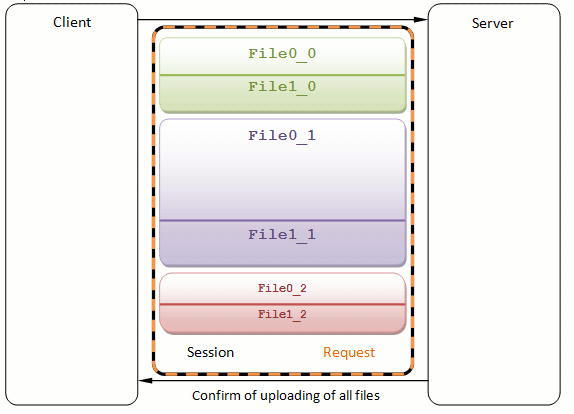
Figure 1. Uploading all files at once.
Sending Files in Several Packages
To turn the package upload mode on, set the FilesPerPackage property to a positive
integer (number of user-selected files which will be processed and uploaded within a package) and ChunkSize to 0.
In this mode Image Uploader restricts the POST request by file count. It means that every request sending within an upload session cannot contain more than FilesPerPackage x converters count files. To do it, Image Uploader prepares a POST request containing converted files and metadata for FilesPerPackage user-selected files. Then this request (package) is submitted to the server, and Image Uploader waits for a confirmation of a successful upload of this package. When this confirmation is received, the next package is uploaded in the same manner. This procedure is repeated until all the converted files are uploaded. The next figure illustrates this mode.
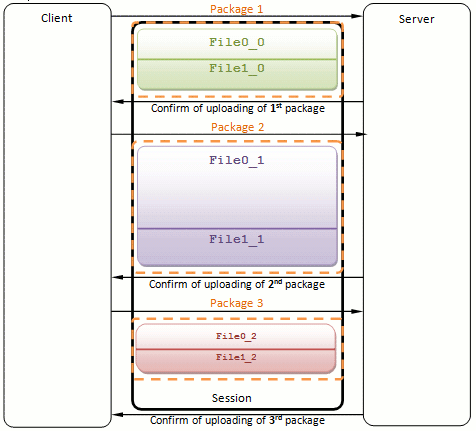
Figure 2. Uploading in several Packages. FilesPerPackage is
1
Sending Files in Several Chunks
To configure the chunk upload mode, set the FilesPerPackage property to
0 and ChunkSize to a positive integer (number of bytes allowed to
upload within a request).
Here Image Uploader restricts the POST request by size. It means that every request sending within an upload session cannot contain more than ChunkSize bytes of binary data. When Image Uploader works in this mode it adds converted files and metadata to a POST request until the request length exceeds ChunkSize + metadata size bytes. If the last added file does not meet the chunk size limitation, Image Uploader adds just a portion of this file to complete this chunk. The remaining portion will be added at the beginning of the next chunk. After that this request (chunk) is submitted to the server, and Image Uploader waits for a confirmation of a successful upload of this chunk. When this confirmation is received, the next chunk is uploaded in the same manner. The figure below demonstrates the chunk upload mode.
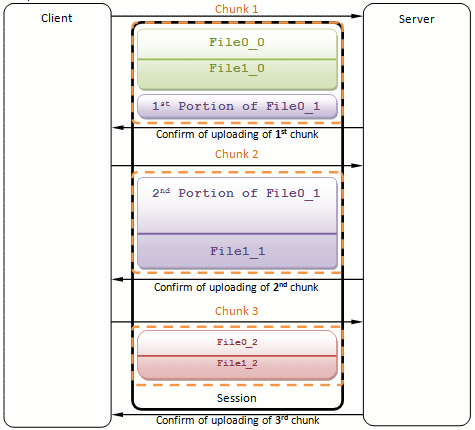
Figure 3. Uploading in several chunks.
When you turn this mode on, it is highly recommended to use Image Uploader ASP.NET or Image Uploader PHP to handle upload on the server side. Both these libraries automatically compose files from chunks uploaded in separate HTTP requests, and provide access to them.
In the case of combining package and chunk upload modes, Image Uploader divides files into chunks only within a package. It means that converted files belonging to different packages will be sent in separate requests even though they may fit in one chunk.
Sending Converted Files Separately
In this mode Image Uploader sends each converted file in a separate POST request. For example, if you set two converters
(say, a copy of the original file and its thumbnail), select two files, and click Upload; Image Uploader will send four requests. To activate this mode set the UploadSettings.UploadConverterOutputSeparately
property to true.
When Image Uploader sends converted files separately it does not take into account the FilesPerPackage value. However, if the ChunkSize is
greater than 0, Image Uploader divides converted files, which size exceeds this value, into chunks
and sends them separately.
Comparison of Upload Modes
In all modes except sending all files at once package preparing and uploading are separated into to different threads.
Client Side
- Memory usage. Generally speaking, uploading all the files at once should consume a lot of memory to be able to upload a large number of files. The multipart/form-data block is an indivisible byte stream, and Image Uploader should commit enough memory to be able to prepare it. So, in case of a single POST request, the control should have a memory block containing all converted files, and in multiple packages mode, it only needs a memory block large enough to contain the part which is currently being uploaded. However, as Image Uploader caches the request to disk using temporary files, the difference disappears. That means that client-side memory usage is equal for all upload modes.
- Upload recovery. Sometimes the upload process can be broken because of some external reasons (for example, physical connection problems, timeout, etc). Image Uploader can automatically resume a broken upload by resending the unsuccessful request. It means that if the single request mode is used, all the files will be sent again even if the only last one has failed. On the opposite, if you send files in separate requests, successfully uploaded ones will not be resent when the upload process is broken. Moreover, in the case of chunk upload usage, Image Uploader will try to resend the unsuccessful chunk; however, if the broken upload cannot be resumed, the whole package containing this chunk is considered as unsuccessful. That is why it is recommended to combine package and chunk upload modes. For more details on upload recovery, refer to the Configuring Fail-safe Upload topic.
- Total time of upload. Upload consists of three stages: establishing a connection, upload itself, and waiting for a confirmation of success. In the single request upload mode Image Uploader performs connection initialization and finalization only once, whereas in the multiple requests modes it repeats these actions for every request. That is why uploading in several parts has some time overhead in comparison to the former one. However, usually this difference is not big enough.
Server Side
-
Memory Usage. When data are being uploaded, the server accepts the uploaded multipart/form-data block and begins to process it. Different server platforms process uploads in a different way. Some of them accumulate the entire block in memory and, when the upload is finished, start splitting it into files, etc. Others work in a more efficient way: they flush uploaded data into temporary files until the upload completes. If it is not the case, and a user uploads data in a huge block (for example, 100 files at the same time), you may get unacceptable memory usage. See the Saving Uploaded Files in ASP.NET or Saving Uploaded Files in PHP topic to get more information on how upload is processed by components of different platforms. If server platform you use is not optimized for uploading huge amounts of data, use the multiple requests upload mode.
NoteReducing resource usage on the server is much more important than on the client side, because, otherwise, it can cause a dramatic performance fall of the entire Web server.
-
Server-side limitations. The majority of web servers have limitations for maximum POST request length and script execution timeout. These limitations may cause the upload problem when the currently uploading request exceeds a maximum allowable length or the upload processing script works too long. Increasing these limitations is rather unsafe because it becomes easier to overload the server. That is why upload in parts may help. However, even if you configure Image Uploader to send one file per request, this problem persists for files which are too big. Thus, if it is expected that your users will upload large size file, it is recommended to turn chunk upload more on.
NoteIn the case of chunk upload usage, set the ChunkSize property to the little less value than a maximum POST request length limitation. The reason is that the physical size of the currently uploaded request (chunk) is ChunkSize + metadata fields.
- Upload script logic. Uploading files in multiple parts significantly complicates the logic of the upload processing script. In the case of the package upload mode, you should additionally determine to what upload session the currently processing package belongs. The cost complicated mode is the chunk upload; here you should bundle portions of files uploaded in separate requests. However, Image Uploader ASP.NET and Image Uploader PHP provide classes which allow operating with files sent in multiple requests as if they were uploaded at a time.
See Also
Reference
- Converter Class
- FilesPerPackage Property
- ChunkSize Property
- UploadConverterOutputSeparately Property
- AutoRecoveryMaxAttemptCount Property
- AutoRecoveryTimeout Property