- Upload Suite Overview
- What's New?
- Choosing Upload Technology
- Evaluating Upload Suite
- Upload Suite Editions
- System Requirements
- Installation and Deployment Notes
- ActiveX/Java Uploader
- HTML5/Flash Uploader
- Before You Started with HTML5/Flash Uploader
- HTML5/Flash Uploader Architecture
- HTML5/Flash Uploader User Interface
- Getting Started
- Using HTML5/Flash Uploader
- Uploading in ASP.NET
- Uploading in PHP
- Uploading in Other Platforms
- Uploading Images
- Customizing User Interface
- Configuring Common Upload Settings in HTML5/Flash Uploader
- Configuring Files to be Uploaded in HTML5/Flash Uploader
- Sending File at Once or in Several Parts in HTML5/Flash Uploader
- Configuring Fail-safe Upload
- Uploading Large Amount of Images
- Configuring Restriction Rules for Files
- Using HTML5/Flash Uploader at Runtime
- Using Host and Upload Domains that Differ from One Another
- Enabling Cross-Origin Resource Sharing for HTML5 Uploader
- Uploading to Amazon S3 with HTML5 Uploader
- Troubleshooting
- Reference
- Licensing Information
- Legal Notices
Using CSS Themes in HTML5 Uploader

HTML5 Uploader allows changing its appearance using a CSS theme file.
As an example, you can use the SampleTheme.css skin included in Upload Suite SDK. To change HTML5 Uploader appearance just add a link to your CSS file.
<link rel="stylesheet" type="text/css" href="Scripts/css/aurigma.htmluploader.control.css" />
<link rel="stylesheet" type="text/css" href="Html5UploaderThemes/SampleTheme.css" />
<script type="text/javascript">
var fu = $au.imageUploaderFlash({
    id: 'Uploader1'
});
fu.writeHtml();
</script><link rel="stylesheet" type="text/css" href="Html5UploaderThemes/SampleTheme.css" />
<aur:ImageUploaderFlash ID="Uploader1" runat="server">
</aur:ImageUploaderFlash><head>
<?php
require_once 'ImageUploaderFlashPHP/ImageUploaderFlash.class.php';
ImageUploaderFlash::renderCssRules();
?>
<link rel="stylesheet" type="text/css" href="Html5UploaderThemes/SampleTheme.css" />
</head>
<body>
<?php
$uploader = new ImageUploaderFlash("Uploader1");
$uploader->render();
?>
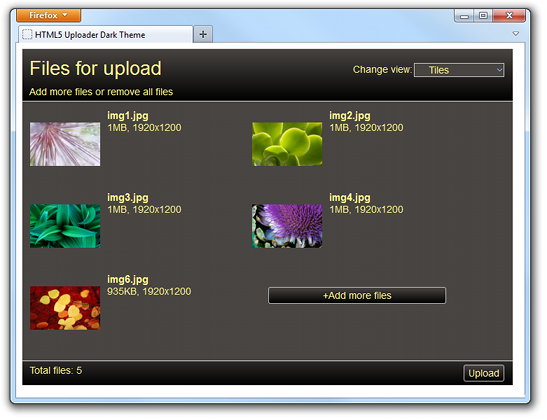
</body>As the result, HTML5 Uploader will look like the following screenshot.
Customizing HTML5 Uploader Skin
You can use SampleTheme.css as a base to create your own skin. To do this, find SampleTheme.css in the C:\Program Files\Aurigma\Upload Suite 8.5.81\HTML5-Flash\Html5UploaderThemes\ folder and modify styles. The following steps demonstrate how it can be done.
Modify styles in
SampleTheme.cssand put images or fonts, used in a new look and feel, on your website. Classes in the CSS file, which contain settings of a user interface, are self-documented. It will not be so hard to understand settings of what element are stored in a particular class. As an example, we change the title font, make the Send button bigger, and change the Upload Pane background color. See snippets of theSampleTheme.cssfile below.CSS/* Change font of the title */ .titleText {font-weight: bold;} /* Make the Upload button wider */ .sendButton {width: 150;} /* Change the Upload Panel background */ .tileList{background-color: #b68f72;}- Upload the
SampleTheme.cssfile on your website. - Specify a URL to this file as a value of the flashControl.themeUrl property. See code samples above.
-
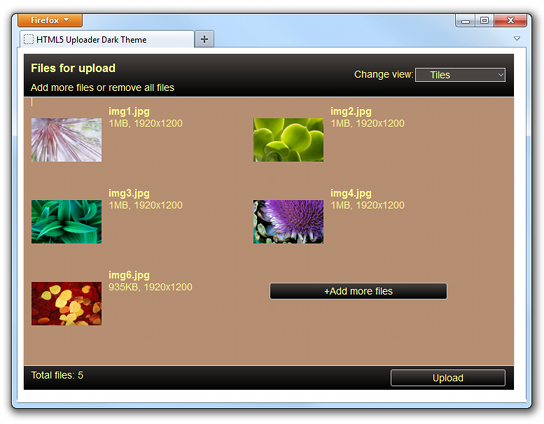
Run your application and make sure that HTML5 Uploader looks like the following screenshot.