- Upload Suite Overview
- What's New?
- Choosing Upload Technology
- Evaluating Upload Suite
- Upload Suite Editions
- System Requirements
- Installation and Deployment Notes
- ActiveX/Java Uploader
- Where ActiveX/Java Uploader Can Be Useful
- Before You Started with ActiveX/Java Uploader
- ActiveX/Java Uploader Fundamentals
- ActiveX/Java Uploader User Interface
- Getting Started
- Using ActiveX/Java Uploader
- Uploading in ASP.NET
- Configuring ActiveX/Java Uploader ASP.NET
- Saving Uploaded Files in ActiveX/Java Uploader ASP.NET
- Uploading Folders in ActiveX/Java Uploader ASP.NET
- Uploading Additional Data in ActiveX/Java Uploader ASP.NET
- Maintaining Sessions and Authentication in ActiveX/Java Uploader ASP.NET
- Enabling Multi-threaded Upload via ActiveX/Java Uploader in ASP.NET
- Debugging ASP.NET ActiveX/Java Upload Scripts
- Uploading in PHP
- Uploading in Other Platforms
- Configuring and Handling Upload on Client Side
- Uploading Images
- Customizing User Interface
- Configuring Restriction Rules for Files
- Using ActiveX/Java Uploader at Runtime
- Uploading in ASP.NET
- Troubleshooting
- Reference
- HTML5/Flash Uploader
- Licensing Information
- Legal Notices
Debugging ASP.NET ActiveX/Java Upload Scripts
This topic describes different approaches to solving the issue when ActiveX/Java Uploader is unable to successfully upload files and displays the following error message:
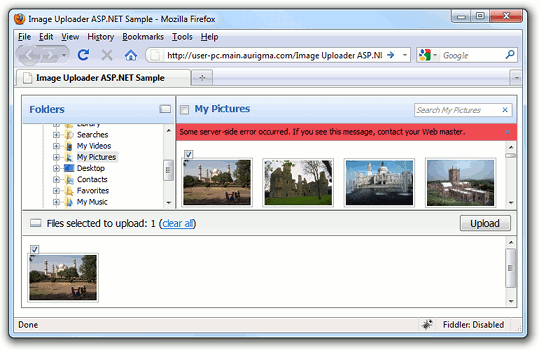
This error message indicates that some server-side error occurred during the upload process. Here are the most probable issues causing the problem:
- ActiveX/Java Uploader cannot save uploaded files because of wrong permissions configuration. See the Configuring ActiveX/Java Uploader ASP.NET topic to learn how to set required permissions.
- The request size is too big. See the Configuring ActiveX/Java Uploader ASP.NET topic to learn how to increase maximum request length.
- There is an error in your server upload script (specified with the UploadSettings.ActionUrl property). See the debug approaches described below to find the error.
If you experience an issue having different sympthoms than those described in this article, please, see the Basic Steps in Troubleshooting of ActiveX/Java Uploader topic.
Here we consider the following approaches to handling and debugging server-side errors:
- Error logging approach is more convenient for production applications. It catches all the exceptions and writes error details to a log file; so, it does not show any information about errors to users.
- Handling error event approach implies showing the server response when some error occurs. If displaying errors is enabled, this response contains error details. However, this approach requires some modifications of ActiveX/Java Uploader settings.
- Using sniffer allows you to view server response without necessity to modify embedding code, but it uses a third-party tool.
- Running script in debug mode means debugging ASP.NET Web applications in the same manner as Windows Forms.
Error Logging
This strategy implies enclosing the part of the upload script which saves files in try/catch
block and writing exception details to an external log file. The code sample below implements the LogError(String,String) method to create
a current date log file in the /Logs folder of an application and write error message and stack trace to this log file.
private void LogError(string errorMessage, string stackTrace)
{
    string logPath = Server.MapPath("~/Logs/" + DateTime.Today.ToString("MM-dd-yy") + ".log");
    if (!System.IO.File.Exists(logPath))
        System.IO.File.Create(logPath).Close();

	using (System.IO.StreamWriter w = System.IO.File.AppendText(logPath))
    {
        w.WriteLine("{0} Error: {1}",
            DateTime.Now.ToString(System.Globalization.CultureInfo.InvariantCulture),
            errorMessage);
        w.WriteLine(stackTrace);
        w.Flush();
        w.Close();
    }
}

protected void AllFilesUploaded(object sender, Aurigma.ImageUploader.AllFilesUploadedEventArgs e)
{
    try
    {
        SaveFiles(e);
	}
    catch (Exception ex)
    {
        LogError(ex.Message, ex.StackTrace);
    }
}

private void SaveFiles(Aurigma.ImageUploader.AllFilesUploadedEventArgs e)
{
    // ...
    // Saving uploaded files
    // ...
}
This method writes error details in the following way:
10/18/2010 15:52:11 Error: Object reference not set to an instance of an object.
	at _Default.SaveFiles(AllFilesUploadedEventArgs e) in c:\inetpub\wwwroot\Uploader\ErrorLogging\upload.aspx:line 66
	at _Default.AllFilesUploaded(Object sender, AllFilesUploadedEventArgs e) in c:\inetpub\wwwroot\Uploader\ErrorLogging\upload.aspx:line 51
You may need to slightly modify the code above to use the described approach with other methods of Saving Uploaded Files in ActiveX/Java Uploader ASP.NET.
Handling Error Event
If you are not familiar with the client events in ActiveX/Java Uploader, please, read the Using JavaScript API topic first.
ActiveX/Java Uploader exposes the Error event which fires when a server or client-side error occurs.
Error type is defined by the errorCode argument of this event, and in the case of server-side error it is equal to 4.
The full list of error codes can be found in Error event parameters.
Detailed description of an occurred error is available through the errorPage which represents the web page returned from the server.
The following example shows how to display error details if a server-side error occurs.
<script type="text/javascript">
function errorHandler(errorCode, httpResponseCode, errorPage, additionalInfo){
	if (errorCode == 4) {
		var newWindow = window.open();
		with (newWindow.document) {
			open("text/html");
			write(errorPage);
			close();
		}
	}
}
</script>

<aur:Uploader ID="Uploader1" runat="server">
	<ClientEvents>
		<aur:ClientEvent EventName ="Error" HandlerName="errorHandler" />
	</ClientEvents>
</aur:Uploader>
Using Sniffer
Sniffer is a network analyzer software which allows to track interactions between client-side and server-side parts of an application. Here we consider the Fiddler tool as an example of debugging server-side upload script.
- Open
default.aspxin your browser. If it is able to send traffic to Fiddler, the corresponded session will be displayed in the Web Sessions pane of the tool. - Send a file via ActiveX/Java Uploader.
-
Double-click the
upload.aspxsession in the Web Sessions pane.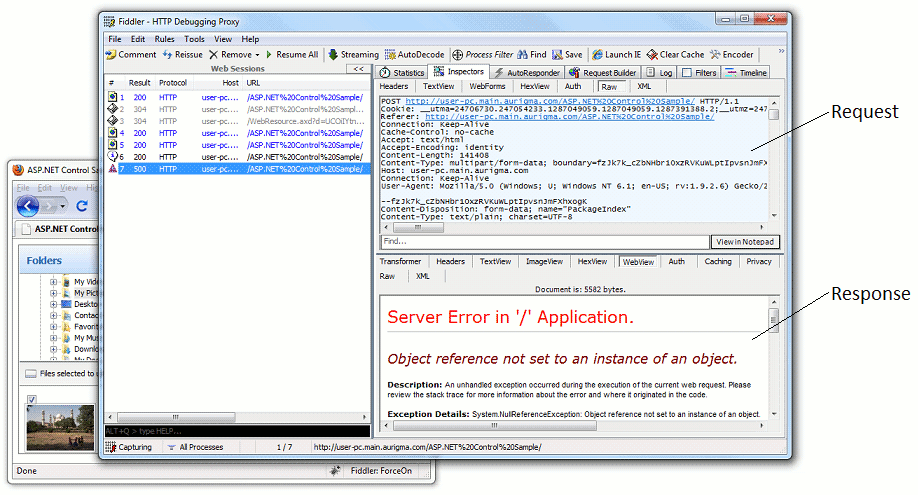
Find upload session details in the left part of Fiddler's interface. Here it contains the POST request sent by ActiveX/Java Uploader and the response returned by your upload script. If your upload script contains an error this error details will be displayed in the returned response.
Running Script in Debug Mode
Microsoft Visual Studio allows debugging ASP.NET Web applications in the same manner as Windows Forms. See the Debugging ASP.NET Web Applications During Development and Debugging Deployed ASP.NET Web Applications MSDN topics for step-by-step instructions on how to debug ASP.NET Web applications.
See Also
Reference
Manual
- Saving Uploaded Files in ActiveX/Java Uploader ASP.NET
- Configuring ActiveX/Java Uploader ASP.NET
- Basic Steps in Troubleshooting of ActiveX/Java Uploader
- Using JavaScript API